



Did you recently upgrade to a Wi-Fi 6 router? If so, you made a smart move. However, buying a fast new router does not automatically make your network safe. The truth is, most Wi-Fi 6 routers ship with dangerous default Wi-Fi 6 router security settings. Attackers know these defaults inside out. Therefore, you need to change them before your network becomes an easy target.
In this guide, you will learn exactly which Wi-Fi 6 router security settings to change, why each one matters, and how to do it step by step.
Why Your Wi-Fi 6 Router Security Settings Matter More Than Ever
Wi-Fi 6 (802.11ax) connects more devices at once than any previous standard. Your phone, laptop, smart TV, security cameras, and IoT gadgets all share the same network. Additionally, Wi-Fi 6 uses a powerful new encryption protocol called WPA3. However, most routers do not enable WPA3 by default.
This creates a serious gap between what your router can do and what it actually does right now.
Furthermore, attackers actively scan for routers running factory defaults. They use automated tools to find them in minutes. Because of this, your router is at risk from the moment you plug it in.
Before we dive into settings, it is worth knowing whether your current hardware is the right fit. Our guide on Wi-Fi 6 vs Wi-Fi 7 — Which Is the Smarter Upgrade for Businesses? breaks down exactly what you get from each generation.
For hardware, products, and expert advice, Jazz Cyber Shield is your trusted partner in cybersecurity and networking equipment.
Setting 1 — Change Your Default Admin Credentials First
The very first Wi-Fi 6 router security setting you must change is your admin login. Every router brand ships with publicly known default usernames and passwords. For example, many routers use “admin” as both the username and password. Attackers know this.
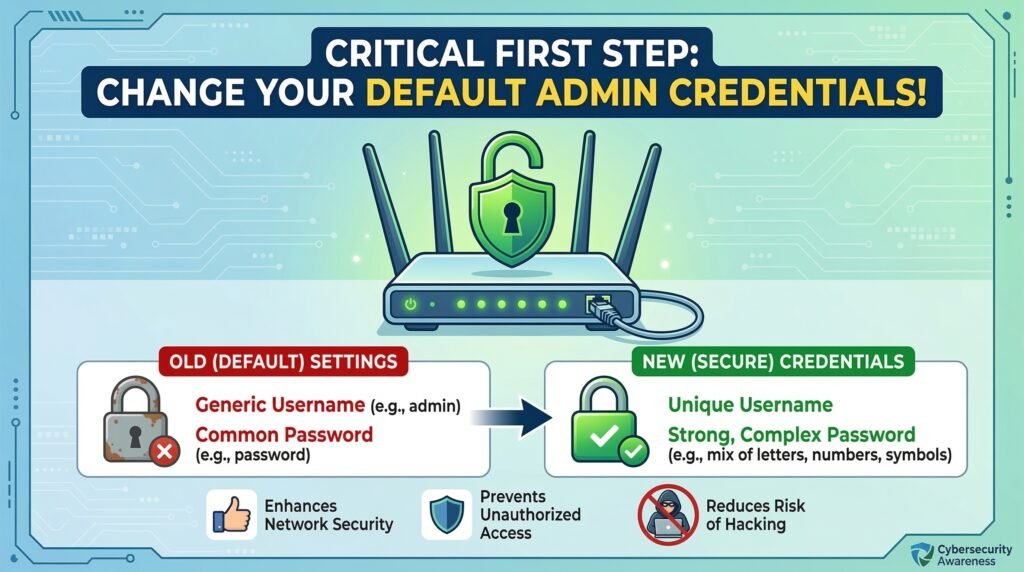
Here is how to fix it:
- Open your browser and go to 192.168.1.1 or 192.168.0.1
- Log in using the default credentials printed on your router
- Navigate to Administration or System Settings
- Change the username and password to something long and unique
- Save the changes and log back in
Use a password manager to store the new credentials safely. This single step blocks one of the most common router attacks.
We also covered this risk in depth in our article on how your home router can be used against you. It is highly recommended reading alongside this guide.
Setting 2 — Enable WPA3 Encryption Right Now
WPA3 is the strongest Wi-Fi encryption standard available today. However, most routers default to WPA2 or a mixed WPA2/WPA3 mode for backward compatibility. Therefore, you need to enable WPA3 manually.
Why does this matter? WPA2 uses a Pre-Shared Key (PSK) handshake. Attackers can capture this handshake and crack it offline. WPA3 uses Simultaneous Authentication of Equals (SAE), which makes offline cracking impossible.
To enable WPA3:
- Log into your admin panel
- Go to Wireless Settings or Wi-Fi Security
- Change the security mode to WPA3-Personal
- If you have older devices, choose WPA2/WPA3 Transitional mode instead
- Never use WEP, WPA, or Open — these are completely unsafe
Enterprise-grade access points, such as the HPE Aruba access points available at Jazz Cyber Shield, offer stronger default security configurations than most consumer routers. They are worth considering if you run a home office or small business.
Setting 3 — Turn Off WPS Without Delay
Wi-Fi Protected Setup (WPS) lets you connect devices by pressing a button or entering an 8-digit PIN. It sounds convenient. However, the WPS PIN system has a well-documented vulnerability. Attackers can break it using brute-force tools in just a few hours.
Importantly, a strong Wi-Fi password does not protect you here. WPS creates a completely separate attack path that bypasses your password.
Turn it off immediately:
- Go to Wireless Settings or Advanced Settings in your admin panel
- Find the WPS option
- Disable it completely
Yes, connecting new devices takes a few extra seconds. That is a worthwhile trade-off for closing a serious security gap.
Setting 4 — Separate Your IoT Devices With a Guest Network
This is one of the most powerful Wi-Fi 6 router security settings you can configure. Network segmentation keeps your smart devices isolated from your personal computers and phones.
Here is why this matters so much. IoT devices — smart bulbs, thermostats, baby monitors, and cameras — are frequently unpatched and vulnerable. If an attacker gets into one of them, a flat network lets them reach every other device you own.
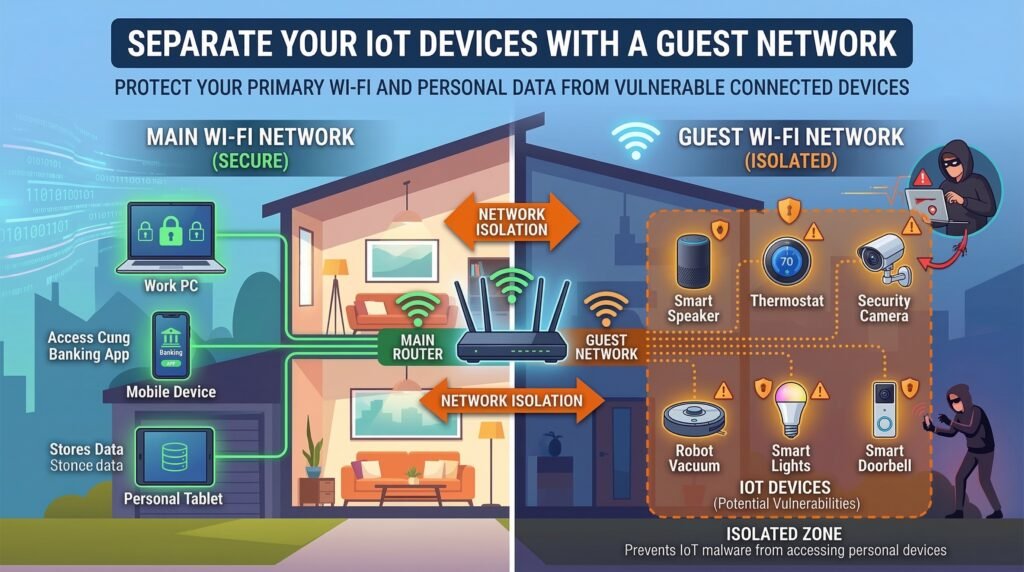
How to set it up:
- Log into your admin panel
- Find Guest Network or VLAN Settings
- Create a separate network for all IoT devices
- Enable Client Isolation so devices on the guest network cannot talk to each other or your main network
This is especially important if you use security cameras at home or in your office. Our blog post Is Someone Watching? How Hackers Access Your Security Cameras explains exactly how attackers exploit connected cameras — and how segmentation stops them.
For businesses that need enterprise-grade segmentation, Jazz Cyber Shield offers Fortinet firewalls, SonicWall firewalls, and HPE Aruba network switches that support full VLAN-based segmentation.
Not sure how routers and switches work together in this kind of setup? Read our plain-language guide: Router vs Switch: Key Differences Explained.
Setting 5 — Disable Remote Management
Remote management lets you access your router’s admin panel from anywhere on the internet. However, this feature also means anyone on the internet can try to break in — not just you.
Check this setting now:
- Go to Administration or Remote Access in your admin panel
- Confirm that remote management is disabled
- If it is enabled without a specific reason, turn it off immediately
Unless you are a network professional with a clear use case and IP allowlist configured, remote management should stay off.
Setting 6 — Update Your Router Firmware Today
Outdated firmware is one of the top causes of router compromise. Manufacturers regularly release updates that patch known security vulnerabilities. However, most people never update their router’s firmware after the initial setup.
Here is what to do:
- Log into your admin panel
- Look for Firmware Update under Administration or Advanced Settings
- Install any available updates immediately
- Enable Automatic Updates if your router supports it
For managed enterprise networking equipment — such as Cisco network switches or Cisco Meraki devices — firmware management happens automatically through a cloud dashboard. This is one of the strongest reasons to invest in enterprise networking hardware over consumer-grade routers.
For a full comparison of management approaches, see our article on Cloud-Managed vs Locally Managed Switches.
Setting 7 — Rename Your SSID to Remove Hardware Clues
Your SSID is the name of your Wi-Fi network. Default names like “ASUS_RT-AX88U” or “NETGEAR_5G” immediately tell attackers which router model you are running. They can then search for known vulnerabilities specific to that hardware.
Change your SSID so that it reveals nothing about the hardware or your identity. Avoid using your name, address, apartment number, or any personal detail.
Additionally, do not hide your SSID. Hidden networks still broadcast beacon frames. Scanning tools detect them easily. Furthermore, hidden SSIDs can actually invite more attention from curious attackers — while offering zero real protection.
Setting 8 — Disable UPnP to Block an Overlooked Risk
Universal Plug and Play (UPnP) allows devices on your network to automatically open router ports — without your permission or knowledge. This is a significant risk.
If malware infects one device on your network, it can use UPnP to reconfigure your router. It can open ports, redirect traffic, and expose other devices to attackers — all silently in the background.
Turn UPnP off:
- Go to Advanced Settings, NAT, or Firewall Settings
- Find UPnP and disable it
- Save the changes
Most home users will never notice UPnP is gone. However, the security benefit is immediate and significant.
Setting 9 — Activate Your Router’s Built-In Firewall
Most Wi-Fi 6 routers include a built-in Stateful Packet Inspection (SPI) firewall. However, many routers do not have it enabled by default. Therefore, verify that your firewall is active.
- Go to Security or Firewall Settings in your admin panel
- Confirm that SPI Firewall is enabled
- Also enable DoS Protection if the option is available
For home users, the built-in firewall provides a solid baseline. For small businesses, however, a consumer router’s firewall is not enough. A dedicated hardware firewall provides deep packet inspection, intrusion prevention, and real-time threat intelligence.
Jazz Cyber Shield carries the industry’s top firewall brands:
- Fortinet Firewalls — advanced threat protection for growing businesses
- SonicWall Firewalls — strong performance at a competitive price for SMBs
- WatchGuard Firewalls — unified threat management built for smaller offices
Browse the full firewalls collection at Jazz Cyber Shield to find the right fit.
Setting 10 — Audit Connected Devices Every Month
Your router’s admin panel shows every device currently on your network. Make it a habit to review this list at least once a month.
Look for anything you do not recognize. An unfamiliar device could be a neighbor using your connection — or an attacker who has already gained access. If you spot something suspicious, change your Wi-Fi password immediately. This forces all devices to disconnect and reconnect with the new credentials.
For business networks, manual auditing does not scale. This is precisely where managed network switches add enormous value. They give IT teams real-time visibility and automated alerts for every new device that joins the network. Our post on Boosting Network Performance with Aruba 2540 Switches explains how this works in practice.
Should You Upgrade to Wi-Fi 7 Instead?
If your Wi-Fi 6 router is several years old and no longer receiving firmware updates, it may be time to replace it. An unpatched router with known vulnerabilities gives you false confidence — which is actually worse than no security at all.
Wi-Fi 7 routers require WPA3 by default on the 6 GHz band. This removes one of the biggest configuration risks right out of the box. Our guide Wi-Fi 7 Routers for Small Business: Early 2026 Adoption Guide covers whether upgrading now makes sense for your situation.
Additionally, if you are evaluating a specific Wi-Fi 6 router for a new purchase, read our review: Netgear Nighthawk CAX30 — The Smart Choice for High-Speed Cable Internet.
Frequently Asked Questions About Wi-Fi 6 Router Security Settings
Q: Are Wi-Fi 6 router security settings different from Wi-Fi 5 settings?
The core settings — WPA encryption, admin credentials, WPS, firewall — work similarly across both. However, Wi-Fi 6 adds native WPA3 support, which is a major improvement. Additionally, Wi-Fi 6 connects far more devices simultaneously, so network segmentation becomes much more important.
Q: Does WPA3 make my Wi-Fi 6 router fully secure?
WPA3 is a strong improvement over WPA2. However, it is only one layer of protection. You still need to change default admin credentials, disable WPS and UPnP, update firmware, and segment your IoT devices. Security works in layers — no single setting protects everything.
Q: Do I need to disable WPS even if my Wi-Fi password is very strong?
Yes. The WPS vulnerability does not depend on your password strength. It exploits the PIN authentication system directly. A strong password and a disabled WPS setting work independently — you need both.
Q: Can someone hack my router even after I change the password?
Yes, it is still possible through other routes — outdated firmware, active UPnP exploits, or WPS brute-force attacks. This is why addressing all the Wi-Fi 6 router security settings in this guide matters, not just the password.
Q: Should I use a VPN in addition to fixing these settings?
A VPN adds a valuable extra layer of encryption for your outgoing traffic. However, it does not replace the need for proper router configuration. For a realistic look at what VPNs actually protect — and where they fall short — read our article Free VPN vs Paid VPN: The Truth They Hide (2026).
Q: How often should I update my router firmware?
Check for updates monthly. Enable auto-updates if your router supports them. If your manufacturer has stopped releasing firmware updates, replace the hardware. An unpatched router is a liability, not an asset.
Q: Is a guest network really necessary for smart home devices?
Absolutely. IoT devices regularly go unpatched for years. Placing them on an isolated network means a compromised smart device cannot reach your computers, phones, or storage drives. It costs you nothing extra and makes a significant difference.
Q: What is the best firewall for a small business using Wi-Fi 6?
For small businesses, SonicWall and WatchGuard are consistently recommended. For larger organizations with more complex needs, Fortinet leads the market in advanced threat protection. The Jazz Cyber Shield team can help you choose the right option.
Q: Does “WPA3 compatible” mean my router is already using WPA3?
No. Compatible and enabled are different things. Many routers default to WPA2 even when WPA3 is available. Log into your admin panel and confirm which security mode is actually active on your network.
Q: Is Wi-Fi 6E safer than standard Wi-Fi 6?
Wi-Fi 6E requires WPA3 on the 6 GHz band, which is a built-in security upgrade. However, all other security settings — admin credentials, WPS, UPnP, firmware — still need the same attention regardless of whether you are using Wi-Fi 6 or Wi-Fi 6E.
Final Checklist — Wi-Fi 6 Router Security Settings
Before you close this tab, go through this list:
- ✅ Changed default admin username and password
- ✅ Enabled WPA3 or WPA2/WPA3 Transitional encryption
- ✅ Disabled WPS
- ✅ Created an isolated guest network for IoT devices
- ✅ Disabled remote management
- ✅ Updated firmware and enabled auto-updates
- ✅ Changed SSID to remove hardware identification
- ✅ Disabled UPnP
- ✅ Confirmed SPI firewall is active
- ✅ Reviewed and recognized all connected devices
Complete every step on that list and your Wi-Fi 6 router security settings will be stronger than those on the vast majority of home and small business networks.
For businesses that need to go further — with enterprise firewalls, managed switches, and professional-grade access points — the team at Jazz Cyber Shield has everything you need. Explore the complete networking and security hardware shop or get in touch directly.
Stay current with the latest cybersecurity guides, product reviews, and networking tips by following the Jazz Cyber Shield Blog. New practical content goes live every week — built for both everyday users and IT professionals.
Your network is only as secure as its weakest setting. Now you know exactly where every weak point is.
Have questions about securing your network or finding the right firewall for your business? Contact the Jazz Cyber Shield team at jazzcybershield.com/contact — we are here to help.

