



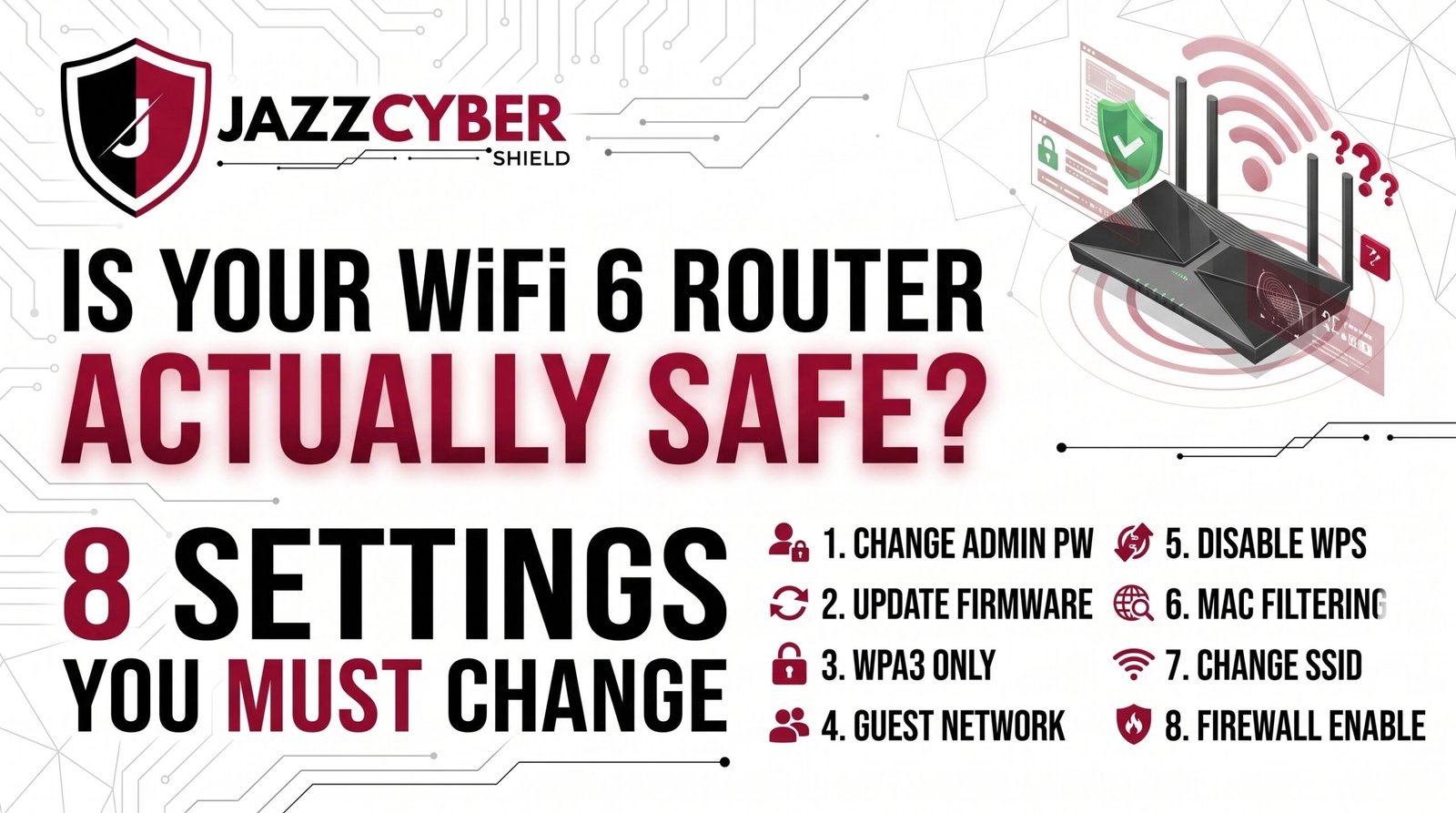
Your New Router Could Be Your Biggest Security Risk
Most people unbox their WiFi 6 router, plug it in, and never touch another setting. That’s exactly what hackers are counting on.
You upgraded to WiFi 6 for faster speeds and better range. Smart move. But speed means nothing if your router is wide open to attackers.
Here’s the truth — WiFi 6 routers ship with default settings designed for convenience, not security. Out of the box, your router is broadcasting your network name, using weak default passwords, and running services you don’t need. Every one of those is an open door.
A hacker doesn’t need to be a genius to get into your network. They need you to be lazy. And most people are — because nobody told them which WiFi 6 router settings actually matter.
Table of Contents
The Scale of Home Router Vulnerabilities in 2026
The numbers are alarming.
According to CISA (opens in new tab), routers are among the top three most exploited devices in home and small business networks. Over 80% of successful home network breaches start at the router level — not the device level.
WiFi 6 adoption has exploded. Millions of households upgraded between 2023 and 2026. But most users never changed a single security setting after setup.
⚠️ ALERT: A 2024 report by NIST (opens in new tab) found that over 65% of home routers still use default admin credentials — the first thing any attacker tries. Default username: admin. Default password: admin. Your router manual is public. Hackers have read it.
The global home network security market is responding — projected to reach $8.2 billion by 2028. But technology can’t save you if you never configure it.
Your WiFi 6 router is powerful. Configured correctly, it’s a fortress. Configured wrong, it’s a welcome mat.
Setting 1 — Change Your Default Admin Password
This is the most critical WiFi 6 router setting. And the most ignored.
Every router ships with a default admin password. Manufacturers publish these in manuals, support pages, and online databases. Attackers use automated tools to try every known default combination in seconds.
If you haven’t changed your admin password, you haven’t secured your router. Period.
HOW ATTACKERS GET IN:
[Public router database] → [Find your router model]
         ↓
[Try default credentials]
         ↓
[Admin access granted in seconds]
         ↓
[Full network control — DNS, traffic, devices]
How to fix it:
- Open your browser and type your router IP — usually
192.168.1.1or192.168.0.1 - Log in with current credentials (check the sticker on your router)
- Go to Administration → Password
- Set a new password — minimum 16 characters, mix of letters, numbers, symbols
- Save and log back in
🔴 WARNING: Never use your WiFi password as your admin password. They must be completely different. One protects your network, the other protects your router’s control panel.
Setting 2 — Update Your WiFi 6 Router Firmware
Outdated firmware is a ticking time bomb.
Router manufacturers release firmware updates to patch security vulnerabilities. If you’re running old firmware, you’re running known exploits — ones that attackers have already written tools for.
Most WiFi 6 routers support automatic firmware updates. Enable it. Right now.
| Router Brand | Auto-Update Location | Manual Update Location |
|---|---|---|
| ASUS | Administration → Firmware Upgrade | Same menu |
| TP-Link | Advanced → System Tools → Firmware Upgrade | TP-Link website |
| Netgear | Advanced → Administration → Firmware Update | Netgear support |
| Linksys | Connectivity → Router Details → Firmware Update | Linksys website |
⚠️ ALERT: Microsoft Security research (opens in new tab) found that unpatched router firmware was a factor in over 30% of home network intrusions in 2024. One update can close dozens of vulnerabilities at once.
Check your firmware version today. If it’s more than six months old, you’re overdue.
Setting 3 — Disable WPS Immediately
WPS — WiFi Protected Setup — was designed to make connecting devices easier. Press a button, enter an 8-digit PIN, and you’re connected.
The problem? That 8-digit PIN can be cracked in under 4 hours using brute force tools that are freely available online. WPS is a known vulnerability. Security researchers have been warning about it since 2011. It’s still enabled by default on most routers in 2026.
WPS ATTACK FLOW:
[Attacker runs Reaver/Bully tool]
         ↓
[Tries 8-digit PIN combinations]
         ↓
[Cracks PIN in 2-4 hours]
         ↓
[Gets full WiFi password]
         ↓
[Joins your network — no alerts triggered]
How to disable WPS:
- Log into your router admin panel
- Find Wireless Settings or Advanced Wireless
- Locate WPS option
- Set to Disabled
- Save settings
🔴 WARNING: Some routers have a physical WPS button that re-enables WPS when pressed. Tape over it or check your manual for how to permanently disable it in firmware.
Setting 4 — Switch to WPA3 Encryption on Your WiFi 6 Router
WiFi 6 and WPA3 were built for each other. If your WiFi 6 router is still running WPA2, you’re leaving serious security on the table.
WPA2 has known vulnerabilities — including the KRACK attack — that can allow attackers to decrypt your network traffic. WPA3 fixes all of them with stronger encryption and a better handshake protocol.
| Security Protocol | Encryption | Vulnerability | Recommended |
|---|---|---|---|
| WEP | 64/128-bit | Cracked in minutes | ❌ Never |
| WPA | TKIP | Multiple exploits | ❌ No |
| WPA2 | AES | KRACK attack | ⚠️ Acceptable |
| WPA3 | SAE | None known | ✅ Yes |
How to enable WPA3:
- Go to Wireless Settings in your router admin
- Find Security Mode or Encryption Type
- Select WPA3 or WPA2/WPA3 Mixed Mode
- Save and reconnect your devices
For more detail on why this matters, read our full guide: WPA2 vs WPA3 — What’s the Real Difference?
⚠️ ALERT: Older devices may not support WPA3. Use WPA2/WPA3 Mixed Mode if you have older smart home devices — this gives WPA3 to newer devices while keeping WPA2 as a fallback.
Setting 5 — Change Your Default SSID
Your SSID is your network name — the one that shows up when someone searches for WiFi nearby.
Default SSIDs like “NETGEAR_5G” or “ASUS_Router_2.4” tell attackers exactly what hardware you’re running. That information helps them look up known vulnerabilities for your specific router model.
Change it to something that doesn’t reveal your router brand, your name, your address, or anything personally identifiable.
Bad SSIDs:
NETGEAR45— reveals brandSmith_Family_WiFi— reveals your nameApt3B_Network— reveals your location
Good SSIDs:
Network_7742— neutral, reveals nothingCoffeeAndCode— personal but not identifyingNotYourWifi— fun and harmless
Also — disable SSID broadcast only if every device on your network can handle manual connection. Hidden SSIDs are not a security measure. They just add inconvenience for you with minimal protection against any determined attacker.
Setting 6 — Enable and Isolate Your Guest Network
Every WiFi 6 router supports guest networks. Most people never enable one.
Here’s why you should — immediately.
When visitors connect to your main network, they share the same network as your laptop, your NAS drive, your security cameras, your smart home devices. One infected device on your main network can spread to everything else.
A guest network is isolated. Devices on it can access the internet. They cannot see or touch anything on your main network.
NETWORK ISOLATION STRUCTURE:
[Main Network]                    [Guest Network]
    │                                   │
    ├── Laptop                          ├── Visitor phone
    ├── NAS / Storage                   ├── Smart TV
    ├── Security Cameras                ├── IoT devices
    └── Work Devices                    └── Isolated — no access to main
Set up your guest network:
- Find Guest Network in your router admin
- Enable it with a separate SSID
- Set WPA2 or WPA3 password
- Enable Client Isolation (prevents guest devices from seeing each other)
- Set bandwidth limits if needed
Put all your IoT devices — smart bulbs, thermostats, cameras — on the guest network too. They’re the weakest links on any home network.
For a deeper look at network segmentation, read: VLAN Setup for Home Network 2026
Setting 7 — Disable Remote Management
Remote management lets you access your router admin panel from outside your home network — from anywhere on the internet.
Unless you’re a network administrator who specifically needs this feature, it should be off. Remote management exposes your router’s admin interface to the entire internet. Attackers scan for open management ports constantly.
🔴 WARNING: In 2024, thousands of home routers with remote management enabled were compromised in a coordinated botnet campaign. Attackers used them to launch DDoS attacks — and their owners had no idea for months.
How to disable remote management:
- Go to Administration or Remote Access settings
- Find Remote Management or WAN Access
- Set to Disabled
- Save settings
If you genuinely need remote access to your network, use a VPN instead. A proper enterprise-grade solution makes the difference — browse our range of Fortinet firewalls for small business and home office network security that goes beyond router-level protection.
Setting 8 — Enable Your Firewall and DNS Filtering
Most WiFi 6 routers have a built-in firewall — but it’s not always enabled by default.
Your router’s firewall blocks unsolicited incoming traffic from the internet. Without it, your devices are directly exposed to port scanning and connection attempts from external sources.
DNS filtering adds another layer. It blocks known malicious domains before your device even makes a connection. Services like Cloudflare 1.1.1.1 or OpenDNS are free and take two minutes to configure.
Enable your router firewall:
- Go to Security or Firewall settings in admin panel
- Enable SPI Firewall (Stateful Packet Inspection)
- Enable DoS Protection if available
- Save settings
Set up DNS filtering:
- Go to Internet Settings or WAN settings
- Find DNS Server settings
- Set Primary DNS to
1.1.1.1(Cloudflare) or208.67.222.222(OpenDNS) - Set Secondary DNS to
1.0.0.1or208.67.220.220 - Save settings
Also read: Hidden Dangers of Public WiFi in 2026 — because securing your home router is only half the battle.
For businesses running remote teams, check out our full range of enterprise firewalls — the same hardware used by Fortune 500 companies to protect distributed networks.
How to Secure Your WiFi 6 Router — Step by Step
Do these in order. Don’t skip any.
- Log into your router admin panel — type
192.168.1.1or192.168.0.1in your browser - Change admin username and password — 16+ characters, unique, nothing obvious
- Check and update firmware — enable auto-updates
- Disable WPS — find it in Wireless settings, turn it off
- Switch to WPA3 — or WPA2/WPA3 Mixed if you have older devices
- Change your SSID — remove any brand names or personal information
- Enable guest network — move IoT and visitor devices to it
- Disable remote management — unless you have a specific business need
- Enable SPI firewall — check Security settings
- Change DNS servers — use Cloudflare or OpenDNS
Total time: under 30 minutes. Protection gained: significant.
✅ Quick Reference Checklist — WiFi 6 Router Security
WIFI 6 ROUTER SECURITY CHECKLIST — 2026

[ ] Admin password changed (16+ characters)
[ ] Firmware updated and auto-update enabled
[ ] WPS disabled
[ ] WPA3 encryption enabled
[ ] Default SSID changed (no brand/personal info)
[ ] Guest network enabled and isolated
[ ] IoT devices moved to guest network
[ ] Remote management disabled
[ ] SPI firewall enabled
[ ] DoS protection enabled
[ ] DNS changed to Cloudflare or OpenDNS
[ ] Router placed centrally — not near windows
[ ] Router restarted after all changes saved
Frequently Asked Questions
Q: Do these settings void my router warranty?
A: No. Changing security settings through the admin panel does not void your warranty. Only flashing third-party firmware (like DD-WRT) might affect warranty terms — and that’s not covered here.
Q: Will enabling WPA3 slow down my WiFi 6 router?
A: No. WPA3 is designed to work efficiently with modern hardware. On a WiFi 6 router, you will not notice any speed difference after enabling WPA3.
Q: How often should I update my router firmware?
A: Enable automatic updates if available. If not, check manually every 3 months. Major vulnerabilities are patched within days of discovery — staying current is critical.
Q: Is a router firewall enough to protect my home network?
A: For most home users, yes — combined with the other settings in this guide. For home offices and small businesses handling sensitive data, consider a dedicated network security appliance in addition to your router.
Q: Can my ISP-provided router be secured the same way?
A: Most ISP routers have the same settings available, but some features may be locked by your provider. If your ISP router has limited security options, consider buying your own WiFi 6 router and putting the ISP device in bridge mode.
Conclusion
Your WiFi 6 router is the gateway to everything on your home network — your work files, your cameras, your banking sessions, your personal devices. Leaving it on default settings is not neutral. It’s a risk you’re choosing to take.
Eight settings. Thirty minutes. That’s all it takes to go from vulnerable to protected.
The threats are real and they’re automated. Attackers aren’t targeting you personally — they’re scanning millions of IP addresses looking for easy wins. Don’t be one.
Change these settings today. Then share this guide with anyone who just upgraded their router and thinks plugging it in was enough.
Related Reading
- Hidden Dangers of Public WiFi in 2026
- VLAN Setup for Home Network 2026
- Router Settings You Must Change Right Now
- WPA2 vs WPA3 — What’s the Real Difference?
- Why Small Businesses Close After a Cyberattack

