



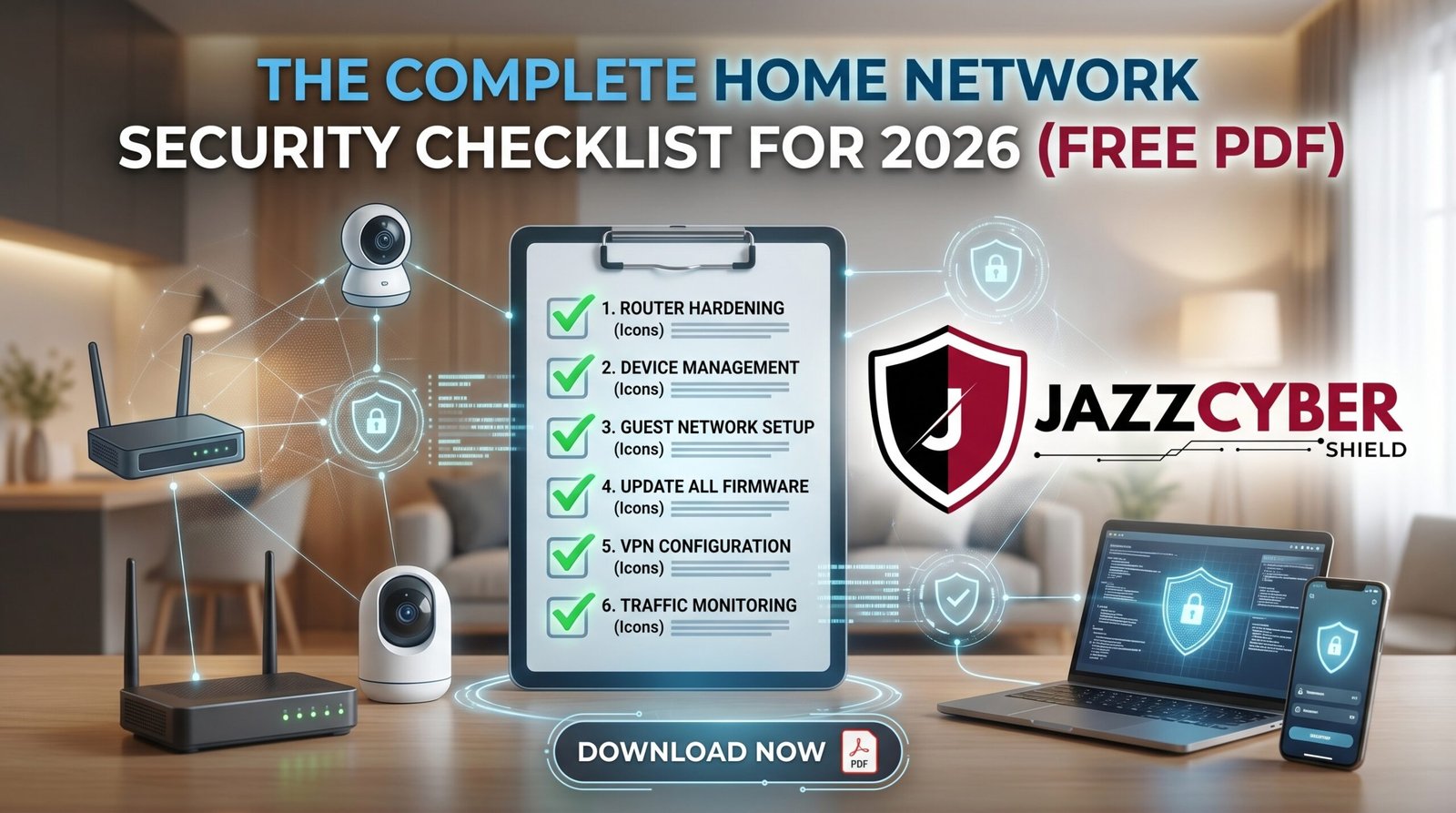
Most Home Networks Fail at Least Half of This List
This home network security checklist covers every device, setting, and habit standing between your family’s data and the attackers actively scanning for it right now.
A family in Tampa had their smart doorbell hijacked. Not their bank account, not their email — their doorbell. An attacker found it through a default password search, accessed the live feed, and watched their front door for three weeks before anyone noticed something was wrong.
Most people think home network security means antivirus software and a strong WiFi password. That’s maybe 20% of the picture. The real risk lives in the dozens of connected devices most households never think about — smart TVs, doorbells, thermostats, gaming consoles, and old routers still running factory settings from years ago.
This home network security checklist walks through every category that matters, in the order that actually reduces risk fastest. Work through it once, and you’ll have eliminated the vast majority of vulnerabilities sitting in your house right now.
Table of Contents
The Scale of Home Network Risk in 2026
The average American household now has 17 connected devices on its home network. Ten years ago, that number was closer to 3. Every one of those devices is a potential entry point.
Smart TVs, doorbells, thermostats, baby monitors, gaming consoles, smart speakers, and security cameras all connect to your network — and most of them ship with weak default security that manufacturers never expect users to fix.
Attackers run automated tools that scan millions of home IP addresses looking specifically for exposed IoT devices, default router passwords, and outdated firmware. They’re not targeting you specifically. They’re targeting anyone who hasn’t completed a basic home network security checklist.
⚠️ ALERT: The FBI has issued multiple public warnings about compromised home routers and IoT devices being used in large-scale botnets — networks of hijacked devices used to launch attacks against other targets without the device owner ever knowing. Your home network can become a weapon used against someone else if it isn’t secured. Read CISA’s home network security guidance (opens in new tab)
The good news: nearly every item on a proper home network security checklist takes minutes to fix and costs nothing. The barrier isn’t expense — it’s simply not knowing what needs attention.
Router and Modem Security: Start Here
Your router is the front door to everything else on this home network security checklist. Get this right first.
Change the Default Admin Password
Every router ships with a default admin password, often printed on a sticker on the device itself. Attackers maintain databases of these defaults by manufacturer and model. Change it to something unique immediately — this is the single highest-priority item on any home network security checklist.
Update Router Firmware
Manufacturers release firmware updates that patch known security vulnerabilities. Most routers don’t update automatically. Log into your router’s admin panel and check for updates manually at least quarterly.
Replace Routers Older Than 5 Years
Older routers often stop receiving security updates entirely. If your router model is more than five years old and the manufacturer no longer issues firmware updates, it’s a standing vulnerability no setting can fix.
Disable Remote Management
Most routers include a remote management feature allowing access from outside your home network. Unless you specifically need this, disable it — it’s an unnecessary attack surface.
Disable UPnP (Universal Plug and Play)
UPnP lets devices automatically open ports on your router without asking permission. Convenient, but it’s also a feature malware specifically abuses to create backdoors. Disable it unless you have a specific reason to keep it on.
ROUTER SECURITY — HOME NETWORK SECURITY CHECKLIST PRIORITY
━━━━━━━━━━━━━━━━━━━━━━━━━━━━━━━━━━━━━━━━━━━━━━━━━━
[ ] Default admin password changed
[ ] Firmware updated to latest version
[ ] Remote management disabled
[ ] UPnP disabled (unless specifically needed)
[ ] WPS (WiFi Protected Setup) disabled
[ ] Router age checked — replace if 5+ years old
━━━━━━━━━━━━━━━━━━━━━━━━━━━━━━━━━━━━━━━━━━━━━━━━━━
For a deeper dive into every individual router setting worth adjusting, our complete guide on router settings you must change walks through each one in detail.
🔴 WARNING: Consumer-grade routers provided by ISPs often prioritize ease of setup over security, shipping with weak default configurations and limited update support. For households serious about long-term network security, a dedicated business-grade firewall or router offers significantly stronger protection and longer support lifecycles. Read NIST’s network security recommendations (opens in new tab)
WiFi Network Configuration
Your WiFi network itself needs specific configuration beyond just the router’s admin settings.
Use WPA3 Encryption (or WPA2 Minimum)
WPA3 is the current standard and significantly more secure than the older WPA2. If your router supports it, enable it. Our breakdown on WPA2 vs WPA3 differences explains exactly what changed and why it matters for your home network security checklist.
Set a Strong, Unique WiFi Password
Not your router admin password — a separate, strong password for connecting devices to your WiFi. Use a long passphrase rather than a short complex string; length matters more than complexity for WiFi passwords.
Rename Your Network (SSID)
Don’t use a default SSID that reveals your router’s manufacturer and model — this gives attackers a head start identifying known vulnerabilities for that specific device. Don’t use your family name or address either.
Create a Separate Guest Network
Nearly every modern router supports a guest network feature. Use it for visitors and any device that doesn’t need access to your main network — this single step dramatically limits the blast radius if any one device gets compromised.
Create a Dedicated IoT Network (Advanced)
For households serious about a thorough home network security checklist, segmenting smart home devices onto their own separate network — distinct from both your main devices and guest network — limits what an attacker can reach even if one IoT device gets compromised. Our guide on VLAN setup for home networks in 2026 shows exactly how to implement this.
| Network Segment | What Goes Here | Why It Matters |
|---|---|---|
| Main Network | Laptops, phones, work devices | Highest security priority |
| Guest Network | Visitor devices | Isolates unknown devices |
| IoT Network | Smart TVs, doorbells, speakers | Contains weak-security devices |
Smart Home and IoT Device Security
This is the category most home network security checklists skip — and it’s where the most overlooked risk actually lives.
Change Default Passwords on Every Smart Device
Smart cameras, doorbells, thermostats, and speakers almost all ship with default admin credentials. Attackers use automated scanning tools specifically designed to find these defaults across the internet. Change every single one.
Disable Features You Don’t Use
Many IoT devices ship with remote access, cloud streaming, or sharing features enabled by default. If you don’t actively use a feature, disable it — fewer active features means fewer potential vulnerabilities.
Keep Device Firmware Updated
Smart device manufacturers regularly release security patches. Check each device’s companion app periodically for available firmware updates, and enable automatic updates where the option exists.
Research Before You Buy
Not every IoT brand takes security seriously. Before purchasing a new smart device, check whether the manufacturer has a history of unpatched vulnerabilities or has been the subject of security research disclosures.
Security Cameras Deserve Special Attention
Security cameras are a particularly attractive target because compromising one gives an attacker direct visual access to your home. Our guide on how hackers break into security cameras explains exactly how these attacks work and what to watch for.
For households wanting professional-grade security camera systems with proper enterprise security built in rather than consumer IoT shortcuts, browse our security camera collection — including Hikvision security cameras designed with stronger authentication and update support than typical consumer smart cameras.
⚠️ ALERT: Microsoft’s security research has documented IoT devices as an increasingly common entry point for home network compromises, citing weak default credentials and infrequent firmware updates as the primary causes. The same vulnerabilities that let attackers access individual smart devices often provide a foothold to move laterally toward more valuable targets on the same network. Read Microsoft’s IoT security research (opens in new tab)
Computers, Phones, and Personal Devices
The devices you actively use daily need their own line items on a complete home network security checklist.
Enable Automatic Operating System Updates
Windows, macOS, iOS, and Android all release regular security patches. Automatic updates ensure you’re protected against known vulnerabilities without having to remember to check manually.
Use Built-In or Reputable Antivirus
Windows Defender and macOS’s built-in protections provide solid baseline coverage for most households. Make sure it’s active and updating its threat definitions automatically.
Enable Two-Factor Authentication on Important Accounts
This protects your accounts even when your password gets compromised through means unrelated to your home network. See our complete guide on setting up two-factor authentication for the full walkthrough.
Use a Password Manager
Unique, strong passwords for every account close one of the most common paths attackers use to compromise accounts connected to your home network. Our comparison of password managers versus writing passwords down covers exactly how to set this up.
Be Careful With Public WiFi
Devices that travel outside your home network face additional risk. Our guide on the hidden danger of public WiFi in 2026 explains what to watch for and how to stay protected when away from home.
Network Monitoring and Visibility
You can’t protect what you can’t see. The final category on a thorough home network security checklist involves actually knowing what’s happening on your network.
Review Connected Devices Regularly
Most router admin panels show a list of currently connected devices. Review this list monthly. An unfamiliar device name is a red flag worth investigating immediately.
Check Router Logs for Unusual Activity
Router admin panels often include basic logs showing connection attempts and traffic patterns. Reviewing these periodically can reveal repeated failed login attempts — a sign someone is trying to brute-force your router.
Consider a Network Monitoring App
Apps like Fing (free) scan your network and identify every connected device, flagging unfamiliar ones and providing basic security recommendations specific to your setup.
For Serious Home Networks: Consider Business-Grade Hardware
Households running smart home systems, home offices, or simply wanting enterprise-level visibility and control increasingly opt for business-grade networking hardware. A proper firewall provides traffic inspection, intrusion detection, and granular control that consumer routers simply don’t offer — and pairing it with managed network switches or access points creates a home network with genuine enterprise-grade segmentation and monitoring.
The Complete Home Network Security Checklist
Here’s every item from this guide consolidated into one comprehensive home network security checklist you can work through in order.
THE COMPLETE HOME NETWORK SECURITY CHECKLIST FOR 2026
━━━━━━━━━━━━━━━━━━━━━━━━━━━━━━━━━━━━━━━━━━━━━━━━━━━━━━

ROUTER & MODEM
[ ] Default admin password changed
[ ] Router firmware updated to latest version
[ ] Remote management disabled
[ ] UPnP disabled unless specifically needed
[ ] WPS disabled
[ ] Router age checked — replace if 5+ years old with no updates

WIFI NETWORK
[ ] WPA3 encryption enabled (or WPA2 minimum)
[ ] Strong, unique WiFi password set
[ ] Default SSID changed to something non-identifying
[ ] Guest network created and separated from main network
[ ] IoT devices segmented onto their own network (if possible)

SMART HOME / IOT DEVICES
[ ] Default passwords changed on every smart device
[ ] Unused features disabled on each device
[ ] Firmware updates checked and applied
[ ] Security cameras using strong, unique credentials
[ ] New device security researched before purchase

COMPUTERS, PHONES & ACCOUNTS
[ ] Automatic OS updates enabled on all devices
[ ] Antivirus/built-in protection active and updating
[ ] Two-factor authentication enabled on important accounts
[ ] Password manager installed and in use
[ ] Public WiFi precautions understood and followed

MONITORING & VISIBILITY
[ ] Connected device list reviewed this month
[ ] Router logs checked for unusual login attempts
[ ] Network monitoring app installed (optional)
[ ] Family/household briefed on basic security habits

━━━━━━━━━━━━━━━━━━━━━━━━━━━━━━━━━━━━━━━━━━━━━━━━━━━━━━
This complete home network security checklist takes a weekend to work through fully — most items take five minutes or less individually, but doing all of them together transforms your overall risk profile.
How to Protect Yourself: Step-by-Step
If you only have an hour today, work through this priority order:
- Change your router’s default admin password — Highest priority, takes two minutes, closes the most commonly exploited gap.
- Update your router’s firmware — Check the admin panel for available updates and install them.
- Set a strong WiFi password and create a guest network — Separates your trusted devices from visitors and IoT gadgets immediately.
- Change default passwords on every smart device — Cameras, doorbells, thermostats, speakers. Don’t skip any of them.
- Enable automatic updates everywhere they’re available — Router, computers, phones, and smart devices alike.
- Install a password manager and enable two-factor authentication — Protects your accounts independent of network-level security.
- Review your connected device list — Identify anything unfamiliar and investigate it immediately.
- Consider segmenting your network — Separate main devices, guests, and IoT devices into distinct network zones for households with many connected devices.
- Upgrade aging hardware — If your router is more than five years old and no longer receiving updates, replacement is overdue.
- Revisit this home network security checklist quarterly — New devices get added to home networks constantly; periodic review keeps your security current.
Frequently Asked Questions
Q: How often should I review my home network security checklist?
A: Do a full review at least twice a year, and a quick check of connected devices monthly. Smart home devices get added frequently, firmware updates release on no predictable schedule, and router settings can occasionally reset after power outages or firmware updates. A quarterly review catches issues before they become serious problems.
Q: Is my home router actually a realistic target for attackers?
A: Yes. Attackers don’t typically target specific home networks by choice — they run automated tools that scan millions of IP addresses looking for routers with default passwords, outdated firmware, or known vulnerabilities. Your home network being “uninteresting” doesn’t protect it; the scanning is indiscriminate, and a compromised router can be used to launch attacks against other targets without your knowledge.
Q: Do I really need a separate network for smart home devices?
A: It’s not strictly required, but it significantly reduces risk for households with many IoT devices. Smart devices generally have weaker security than computers and phones — they receive less frequent updates and often have known, unpatched vulnerabilities. Keeping them on a separate network means a compromised smart bulb or doorbell can’t be used as a stepping stone to reach your laptop or financial accounts.
Q: What’s the single most important item on this home network security checklist?
A: Changing your router’s default admin password. This single action closes the most commonly and most easily exploited vulnerability in home networking. Attackers maintain databases of default credentials by router manufacturer and model, and automated tools test these defaults against millions of devices constantly. It takes two minutes and eliminates one of the most common attack paths entirely.
Q: Can I download this home network security checklist as a PDF?
A: Yes — the complete checklist above covers every category in this guide and can be saved or printed directly from this page for easy reference as you work through securing your home network device by device.
Conclusion
This home network security checklist isn’t theoretical advice — it’s the exact set of gaps that attackers actively scan for and exploit on home networks every single day. The good news is that closing nearly every item costs nothing and takes minutes per task.
Start with your router. Change the default password, update the firmware, and set up a guest network this week. Then work through your smart home devices one by one. By the time you’ve completed this full checklist, you’ll have eliminated the vulnerabilities responsible for the vast majority of home network compromises.
For households ready to move beyond consumer-grade equipment entirely, enterprise networking hardware brings genuine segmentation, monitoring, and threat protection home networks rarely get otherwise. Browse our firewall collection to see what real network-level protection looks like for your home.
Related Reading
- Router Settings You Must Change Right Now
- VLAN for Home Network 2026: Complete Setup Guide
- WPA2 vs WPA3: What’s the Real Difference?
- How Hackers Break Into Security Cameras
- The Hidden Danger of Public WiFi in 2026

