



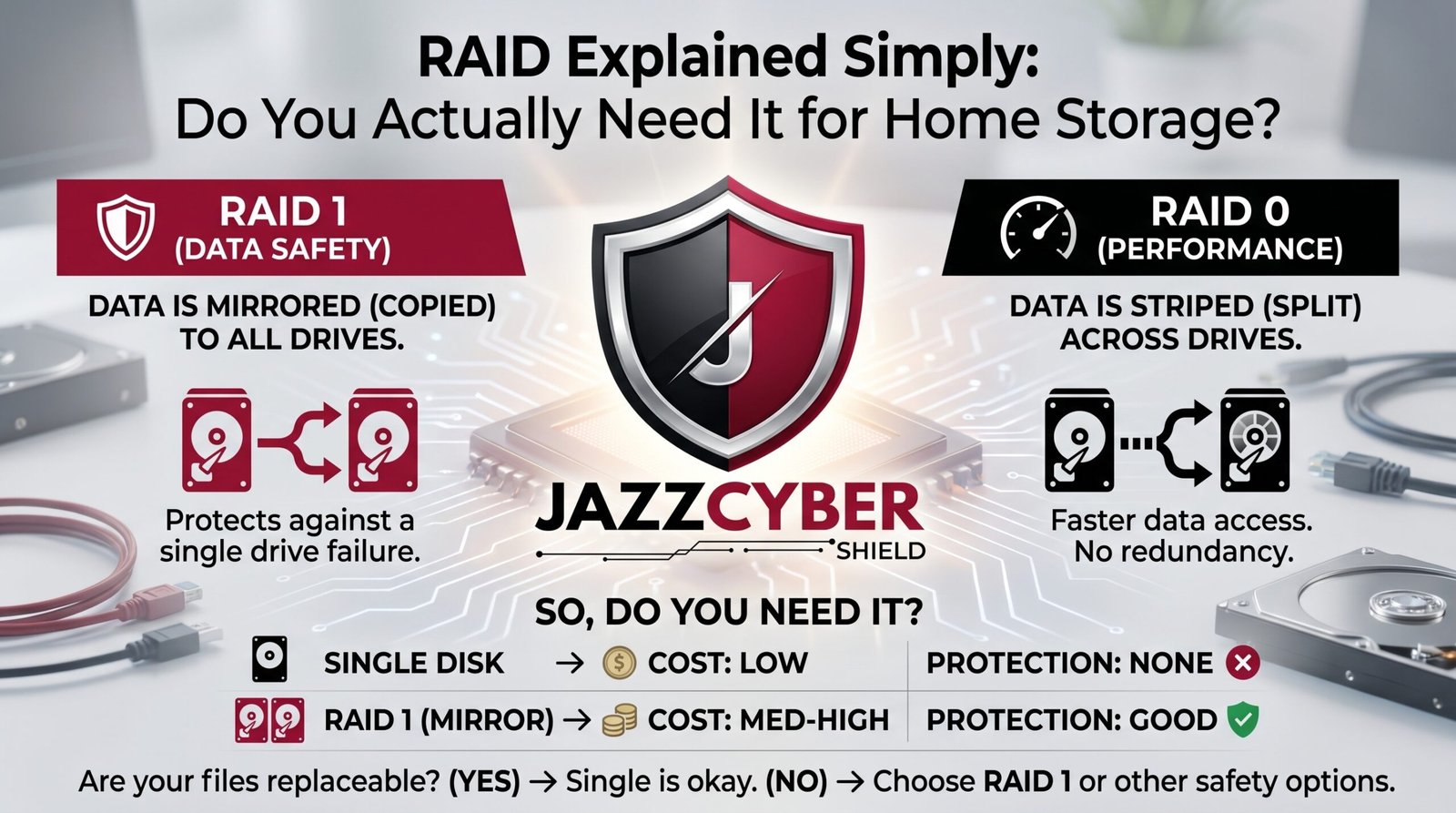
Most People Misunderstand RAID — Here’s What It Actually Does
RAID for home storage sounds complicated. It isn’t. Once you understand what it does — and what it doesn’t do — the decision becomes simple.
You’ve heard the term. Maybe from a friend who built a NAS. Maybe from a YouTube video about data loss. Maybe from your own research after a hard drive died and took years of files with it.
RAID for home storage gets presented as either essential or overkill — depending on who you ask. The truth is more nuanced. RAID solves one specific problem exceptionally well. It solves nothing else. And most people who set it up don’t fully understand which problem that is.
A drive in a RAID 1 array failed last year for someone who thought they had a backup. They didn’t. RAID replaced the failed drive automatically. The data survived. But when ransomware hit three weeks later and encrypted everything — both drives in the mirror went down together. RAID couldn’t help. They had no actual backup.
This guide explains RAID for home storage in plain language — what each level does, which one makes sense for your situation, and the critical thing RAID will never protect you from.
Table of Contents
Why RAID Matters for Home Storage in 2026
Hard drives fail. That’s not pessimism — it’s physics.
The Backblaze Drive Stats report — the most comprehensive public hard drive reliability data available — shows annual failure rates of 1-5% across most consumer drive models. In a NAS with four drives, the probability of at least one drive failing within three years exceeds 15%. In a larger array, it’s even higher.
When a drive fails without RAID, you lose everything on it. Period. Data recovery services exist — but they cost $300 to $1,500 per drive and don’t guarantee success.
RAID for home storage changes this equation. A properly configured RAID array continues operating through a drive failure — giving you time to replace the failed drive and rebuild the array before you lose any data.
⚠️ ALERT: According to NIST (opens in new tab), data availability is one of the three pillars of information security — alongside confidentiality and integrity. For home users and small businesses storing irreplaceable data, RAID for home storage provides the availability protection that single-drive setups cannot.
The home NAS market has grown dramatically — Synology, QNAP, and similar platforms have made RAID accessible to non-technical users. But accessibility doesn’t mean RAID is always the right answer. Understanding what you’re getting matters before you commit to it.
What RAID Actually Does — And What It Doesn’t
This is the most important section in this guide. Read it carefully.
What RAID does:
- Protects against drive failure by maintaining redundant copies of data (RAID 1, 5, 6, 10)
- Increases read/write performance by striping data across multiple drives (RAID 0, 5, 10)
- Keeps your system running through a hardware failure without data loss
What RAID does NOT do:
RAID DOES NOT PROTECT AGAINST:
❌ Ransomware — encrypts all drives simultaneously
❌ Accidental file deletion — deleted on one drive = deleted on all
❌ Corruption — corrupted data mirrors across all drives
❌ Fire or flood — physical disaster destroys all drives together
❌ Theft — all drives leave with the thief
❌ Controller failure — RAID controller dies = array may be unreadable
❌ User error — you can RAID-wipe yourself just as easily as a single drive
🔴 WARNING: RAID is not a backup. This cannot be overstated. A RAID 1 mirror contains two copies of your data — but both copies are identical, both stored in the same physical device, and both susceptible to every threat except single drive failure. If you set up RAID and believe you now have a backup, you are unprotected against the most common causes of data loss.
RAID and backup solve different problems. RAID solves availability — keeping your system running through hardware failure. Backup solves recoverability — getting your data back after any type of loss event. You need both.
RAID 0 — Speed at a Dangerous Cost
RAID 0 stripes data across two or more drives — splitting every file across multiple drives simultaneously. Read and write speeds increase dramatically. Capacity is maximized — two 4TB drives give you 8TB of usable space.
The catch — there is no redundancy. Zero.
If either drive fails in a RAID 0 array, all data on both drives is lost. RAID 0 doesn’t protect against failure — it increases your failure risk. With two drives, you have twice the probability of a failure causing total data loss.
RAID 0 — HOW IT WORKS:
File: [A1][A2][A3][A4][A5][A6]
                ↓
Drive 1: [A1][A3][A5]   Drive 2: [A2][A4][A6]
                ↓
DRIVE 2 FAILS → ALL DATA LOST
(Drive 1 alone has half the data — unreadable without Drive 2)
When RAID 0 makes sense:
- Scratch storage for video editing — data you can recreate
- Gaming drive for fast load times — games can be reinstalled
- Temporary large file storage — data you don’t care about losing
When RAID 0 never makes sense:
- Storing photos, documents, or any irreplaceable data
- Primary home storage
- Anything you’d be upset to lose permanently
Most home users should never use RAID 0 for primary storage. The performance gains are real — the risk is equally real.
RAID 1 — The Home Storage Sweet Spot
RAID 1 mirrors data across two drives. Every write goes to both drives simultaneously. If one drive fails, the other continues operating with no data loss and no downtime.
This is RAID for home storage in its simplest and most practical form.
RAID 1 — HOW IT WORKS:
File written → [Drive 1 copy] + [Drive 2 copy]
                     ↓
DRIVE 1 FAILS → Drive 2 continues
                     ↓
Replace Drive 1 → Array rebuilds automatically
                     ↓
Full redundancy restored
RAID 1 specs:
- Minimum drives: 2
- Usable capacity: 50% of raw (two 4TB drives = 4TB usable)
- Read speed: Can read from both drives simultaneously — faster than single drive
- Write speed: Similar to single drive — must write to both
- Drive failure tolerance: 1 drive
RAID 1 is right for home storage when:
- You have a 2-bay NAS
- You’re storing irreplaceable data — family photos, documents, work files
- Simplicity matters — easy to understand, easy to manage
- You want automatic failure protection without complex setup
RAID 1 capacity cost: Two 4TB drives in RAID 1 give you 4TB of usable space. You’re paying for 8TB of hardware to get 4TB of storage. The second 4TB is your insurance policy.
For most home NAS users, that trade-off is worth it. Drive failures are real. The cost of losing irreplaceable data exceeds the cost of the extra drive.
For businesses running NAS storage as part of their network infrastructure, pairing RAID arrays with proper network security creates defense in depth — browse our range of network switches for the switching infrastructure that connects your storage to your network reliably.
RAID 5 — When You Need More Than 2 Drives
RAID 5 distributes data and parity information across three or more drives. If one drive fails, the parity data on the remaining drives allows full reconstruction of the lost data.
RAID 5 is the efficiency choice — better capacity utilization than RAID 1 with single-drive failure protection.
| Array Size | Raw Capacity | Usable Capacity (RAID 5) | Usable Capacity (RAID 1) |
|---|---|---|---|
| 3 x 4TB | 12TB | 8TB (67%) | N/A |
| 4 x 4TB | 16TB | 12TB (75%) | 8TB (50%) |
| 5 x 4TB | 20TB | 16TB (80%) | N/A |
| 6 x 4TB | 24TB | 20TB (83%) | 12TB (50%) |
RAID 5 gives you significantly better capacity efficiency than RAID 1, especially as drive count increases.
⚠️ ALERT: RAID 5 has a critical vulnerability — the rebuild process. When a drive fails in a RAID 5 array, rebuilding the replacement drive requires reading every sector of every remaining drive. Modern high-capacity drives (8TB, 12TB, 16TB) take 24-48 hours to rebuild. During that rebuild window, if any remaining drive experiences an unrecoverable read error — and the probability increases significantly on large, aging drives — the entire array fails. This is called the URE (Unrecoverable Read Error) problem.
For home storage with drives under 4TB, RAID 5 risk is manageable. For large drives in larger arrays, RAID 6 (which tolerates two simultaneous drive failures) is safer.
RAID 5 is right for home storage when:
- You have 4+ bay NAS
- You need better capacity efficiency than RAID 1
- Drives are relatively small (under 6TB each)
- You maintain current backups — RAID 5 rebuild risk makes backup more critical
RAID 6 and RAID 10 — Overkill or Essential?
RAID 6 extends RAID 5 with double parity — tolerating two simultaneous drive failures. Requires minimum 4 drives. Usable capacity is raw minus two drives worth.
For home storage with large drives (8TB+) where RAID 5 rebuild risk is significant, RAID 6 provides genuine additional protection. For small home NAS setups with 2-4 small drives, it’s typically overkill.
RAID 10 combines mirroring and striping — pairs of mirrored drives striped together. Requires minimum 4 drives. Provides excellent performance and can tolerate multiple drive failures (as long as both drives in a mirrored pair don’t fail simultaneously).
| RAID Level | Min Drives | Fault Tolerance | Capacity Efficiency | Best For |
|---|---|---|---|---|
| RAID 0 | 2 | None | 100% | Performance only |
| RAID 1 | 2 | 1 drive | 50% | Simple home NAS |
| RAID 5 | 3 | 1 drive | 67-83% | 4-bay home/SMB NAS |
| RAID 6 | 4 | 2 drives | 50-75% | Large drives, critical data |
| RAID 10 | 4 | 1 per mirror pair | 50% | Performance + redundancy |
For most home users — RAID 1 (2-bay) or RAID 5 (4-bay) covers the realistic need. RAID 6 and RAID 10 belong in environments where the cost of downtime exceeds the cost of additional hardware.
RAID for Home Storage vs Cloud Backup — The Real Comparison
People often frame this as either/or. It’s not. They solve different problems.
RAID FOR HOME STORAGE:
Purpose: Keep system running through hardware failure
What it protects: Drive failure only
Speed: Instant — no downtime
Cost: Hardware (drives + NAS)
Privacy: Complete — data stays local

CLOUD BACKUP:
Purpose: Recover data after any loss event
What it protects: Everything — ransomware, deletion, fire, theft
Speed: Slow — limited by internet bandwidth
Cost: Monthly subscription ($7-12/month)
Privacy: Data stored with third party
The correct answer for home storage in 2026 is both.
RAID for home storage provides availability — your NAS keeps running when a drive fails. Cloud backup provides recoverability — you get your data back when ransomware, deletion, or physical disaster strikes.
Using RAID without offsite backup leaves you exposed to every threat except drive failure. Using cloud backup without RAID means your NAS goes down every time a drive fails — and large restores from cloud take days.
According to IBM Security research (opens in new tab), organizations with both local redundancy and offsite backup recover from data incidents 73% faster than those relying on either solution alone.
For home users — RAID 1 on your NAS plus Backblaze Personal Backup ($9/month) covers virtually every realistic data loss scenario.
For businesses protecting network-attached storage alongside critical infrastructure, read: Why Small Businesses Close After a Cyberattack — because inadequate storage protection is consistently cited as a contributing factor.
Do You Actually Need RAID for Home Storage?
Honest answer — it depends on what you’re storing and how much you’d lose if it disappeared.
You need RAID for home storage if:
- You’re storing irreplaceable data — family photos spanning decades, important documents, work files
- Your NAS runs services that need to stay up — Plex, home automation, security camera recording
- Drive failure would cause significant disruption to your household
- You’re running a home office where downtime has real cost
You don’t need RAID for home storage if:
- You’re storing data that exists elsewhere — media files you could re-download, software you could reinstall
- You maintain frequent cloud backup that you’ve tested — RAID adds convenience but may not add essential protection
- Your budget is tight — a good backup solution may serve you better than RAID hardware with no backup
- You have a single-bay NAS — RAID requires minimum 2 drives
The minimum viable home storage setup:
- NAS with RAID 1 — keeps your system running through drive failure
- Cloud backup — protects against everything else
- Occasional offline backup — external drive stored separately
That’s the complete solution. RAID for home storage handles hardware failure. Cloud handles everything else.
How to Set Up RAID for Home Storage — Step by Step
On a Synology NAS (most common home NAS platform):
- Install drives — insert matched drives into NAS bays
- Power on and access DSM — navigate to your NAS IP in a browser
- Open Storage Manager — from the main DSM menu
- Create Storage Pool — choose RAID type based on your setup
- Select drives — choose all drives to include in the array
- Choose RAID type — RAID 1 for 2-bay, RAID 5 for 4-bay
- Create Volume — define the file system (Btrfs recommended for data integrity)
- Set up Shared Folders — organize your storage structure
- Enable data scrubbing schedule — Synology’s monthly data verification
- Configure email alerts — get notified immediately if a drive fails
- Set up cloud backup — Hyper Backup to Backblaze B2 or similar
- Test a restore — verify backup works before you need it
Also read: VLAN Setup for Home Network 2026 — isolate your NAS on a dedicated VLAN to protect your storage from threats on other network segments.
For businesses deploying NAS storage as part of a broader network infrastructure, enterprise-grade firewall protection keeps your storage accessible internally while blocking threats from reaching it externally — browse our range of enterprise firewalls for storage network protection that goes beyond consumer router capability.
Quick Reference Checklist — RAID for Home Storage
RAID FOR HOME STORAGE CHECKLIST — 2026

BEFORE SETUP
[ ] Determined what data needs protection
[ ] Chosen NAS platform (Synology/QNAP recommended)
[ ] Selected matching drives (same model, same capacity)
[ ] Decided RAID level based on bay count and needs
[ ] Understood RAID is not a backup

RAID SETUP
[ ] RAID 1 chosen for 2-bay NAS
[ ] RAID 5 chosen for 4-bay NAS (drives under 6TB)
[ ] RAID 6 chosen for 4-bay+ with large drives (8TB+)
[ ] Storage pool created and verified
[ ] Volume formatted with Btrfs for data integrity
[ ] Monthly data scrubbing scheduled

PROTECTION LAYER
[ ] Email/SMS alerts configured for drive failure
[ ] Cloud backup configured and tested
[ ] Restore test completed (critical)
[ ] External offline backup considered
[ ] RAID rebuild procedure documented

NETWORK SECURITY
[ ] NAS on dedicated VLAN (not same as IoT devices)
[ ] NAS admin password changed from default
[ ] Firewall rules limiting NAS access configured
[ ] NAS not directly exposed to internet
Frequently Asked Questions
Q: Is RAID 1 worth it for home storage?
A: Yes — if you’re storing irreplaceable data and can afford a 2-bay NAS with two drives. RAID 1 provides automatic protection against the most common storage hardware failure (single drive death) at a reasonable cost. The 50% capacity overhead is the price of that protection.
Q: Does RAID replace the need for backup?
A: No — never. RAID protects against drive failure only. Ransomware, accidental deletion, file corruption, fire, and theft all destroy RAID arrays just as completely as they destroy single drives. RAID and backup are complementary solutions that serve different purposes.
Q: Which RAID level is best for a home NAS?
A: For a 2-bay NAS — RAID 1. For a 4-bay NAS with drives under 6TB — RAID 5. For a 4-bay NAS with drives 8TB and larger — RAID 6. For performance plus redundancy with 4+ drives — RAID 10.
Q: Can I add RAID to a NAS I already own?
A: Yes, if your NAS supports multiple drives. Most 2-bay and larger NAS units support RAID configuration. Note that converting an existing single-drive NAS to RAID typically requires wiping and rebuilding — back up your data first.
Q: How long does RAID rebuild take after a drive failure?
A: Depends on drive capacity and NAS processing power. A 4TB drive rebuild typically takes 6-12 hours. An 8TB drive — 12-24 hours. A 16TB drive — 24-48 hours. During rebuild, the array is vulnerable — if another drive fails, you may lose everything. This is why backup during rebuild is critical.
Conclusion
RAID for home storage solves a real problem — keeping your NAS running through drive failure without losing data. For anyone storing irreplaceable files, it’s worth the investment.
But RAID is one layer of a complete data protection strategy, not the whole strategy. It protects against drive failure. Nothing else. Cloud backup protects against everything else. Together, they cover every realistic data loss scenario.
Choose your RAID level based on your NAS bay count and drive size. Set up cloud backup before you need it. Test your restore before disaster forces you to. And understand clearly what RAID does — and what it doesn’t — before you rely on it.
Your data deserves protection that matches its value.
Related Reading
- VLAN Setup for Home Network 2026
- Router Settings You Must Change Right Now
- Hidden Dangers of Public WiFi in 2026
- Why Small Businesses Close After a Cyberattack
- How Hackers Break Into Security Cameras

