



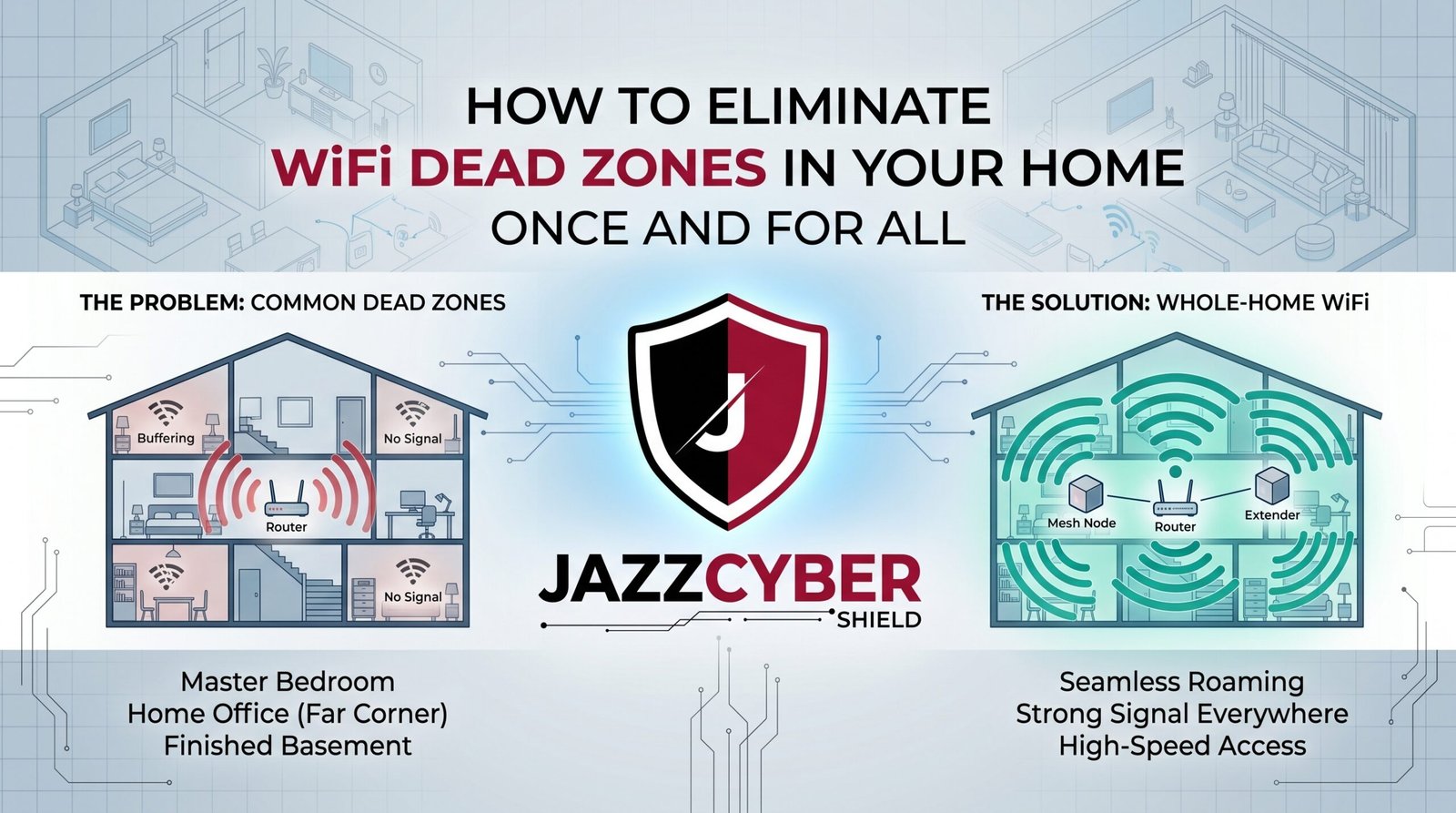
Dead Zones Don’t Fix Themselves — Here’s the Permanent Solution
WiFi dead zones are not a mystery. They have specific causes, specific fixes, and once you understand them, they’re completely solvable.
You know exactly where your dead zones are. The bedroom at the far end of the house. The garage. The backyard. The basement. Maybe even the kitchen — three rooms away from where your router sits in the living room corner.
You’ve restarted your router. You’ve moved it slightly. You’ve upgraded your internet plan, thinking more speed would help. None of it worked. The dead zones are still there.
Here’s what’s actually happening — your router is broadcasting signal in all directions equally, losing strength with every foot of distance and every wall it passes through. By the time that signal reaches your bedroom, it’s a fraction of what it started as. Your devices connect to whatever signal they can find, even when it’s barely usable.
WiFi dead zones are a physics problem with engineering solutions. This guide covers every fix — from free placement changes to hardware upgrades — and tells you exactly which solution fits your specific situation.
Table of Contents
Why WiFi Dead Zones Exist in 2026
WiFi dead zones exist because radio signals obey physics — and your home was not designed with wireless signal propagation in mind.
Every material your WiFi signal passes through absorbs and reflects some of it. Drywall cuts signal by 10-15%. Concrete and brick walls — 40-60%. Metal objects — up to 90%. Your microwave actively interferes with the 2.4GHz band while it’s running. Your neighbor’s WiFi competes for the same radio channels.
By the time your signal travels through two exterior walls, a concrete floor, and several interior walls, it may have lost 80% of its original strength.
⚠️ ALERT: According to the WiFi Alliance, the average US home now has over 25 connected devices competing for bandwidth. In homes where WiFi dead zones exist, devices at the edge of coverage connect at extremely low signal strength — consuming more airtime per data packet and slowing down every other device on the network simultaneously.
The WiFi dead zones problem has gotten worse as homes have gotten smarter. Smart TVs, security cameras, smart thermostats, and connected appliances all compete for signal in the same areas where coverage is already weakest.
Understanding why dead zones exist determines which fix will actually solve them.
How to Find Your WiFi Dead Zones
Before fixing WiFi dead zones, map them precisely. Guessing costs money. Knowing costs nothing.
Use a free WiFi analyzer app:
- Android: WiFi Analyzer (free, Google Play) — shows signal strength as you walk through your home
- iPhone: Network Analyzer (free) or Airport Utility with WiFi scanning enabled
- Windows: NetSpot free version or inSSIDer
- Mac: Wireless Diagnostics (built-in) or NetSpot
Walk every room of your home with the app open. Note signal strength in dBm — anything stronger than -67 dBm is good. -70 to -80 dBm is weak. Below -80 dBm is a dead zone.
SIGNAL STRENGTH REFERENCE:
-50 dBm and above  → Excellent — full speed
-51 to -67 dBm     → Good — reliable connection
-68 to -70 dBm     → Fair — acceptable for basic use
-71 to -80 dBm     → Poor — drops and slow speeds
-81 dBm and below  → Dead zone — barely usable
Map your results on a rough floor plan. Mark strong zones, weak zones, and dead zones. This map determines which fix you need and exactly where to apply it.
Fix 1 — Router Placement Changes That Eliminate Dead Zones
Before buying any hardware, try placement first. A repositioned router eliminates WiFi dead zones more often than people expect — and costs nothing.
Rule 1 — Center beats corner every time: Your router broadcasts signal outward equally in all directions. A router in the corner of your living room wastes half its signal broadcasting into neighboring apartments or your front yard. Move it to the geographic center of your home and your coverage footprint doubles in practical terms.
Rule 2 — Elevation matters: Routers broadcast signal outward and slightly downward. Place your router on a shelf, desk, or high position — never on the floor. Floor placement means most of your signal goes into carpet and subfloor.
Rule 3 — Keep it in the open: A router inside a cabinet, behind the TV, or inside an entertainment unit loses 20-30% of its signal to the surrounding furniture. Open air placement makes a measurable difference.
Rule 4 — Away from interference: The 2.4GHz band — used by most IoT devices and longer-range connections — is the same frequency as microwaves, baby monitors, and cordless phones. Keep your router away from the kitchen and away from other wireless devices.
🔴 WARNING: Many people place their router wherever the coax or ethernet cable from their ISP comes into the wall — usually in a corner of the living room or near the front door. That location was chosen by your ISP for cable routing convenience, not for WiFi coverage optimization. You can extend the cable or use a different connection method to move your router to a better position.
Antenna positioning: If your router has external antennas, position them for maximum coverage. For single-floor homes — antennas vertical. For multi-story homes — one antenna vertical, one horizontal. This creates coverage both horizontally and vertically.
Fix 2 — WiFi Dead Zones and the Channel Congestion Problem
Sometimes WiFi dead zones aren’t about distance at all — they’re about congestion.
Every WiFi network broadcasts on a channel. In dense residential areas — apartments, townhouses, suburban neighborhoods — dozens of networks compete on the same channels. When your router and three neighbors’ routers all use channel 6 on the 2.4GHz band, they interfere with each other constantly.
The result looks exactly like a dead zone — slow speeds, dropped connections, poor performance — even when signal strength appears adequate.
⚠️ ALERT: On the 2.4GHz band, only channels 1, 6, and 11 are non-overlapping. Every other channel overlaps with its neighbors, creating guaranteed interference. If your router is set to “Auto” channel selection in a congested area, it may be choosing a channel that overlaps with multiple competing networks.
Fix channel congestion:
- Open your WiFi analyzer app and check which channels neighboring networks use
- Log into your router admin panel
- Go to Wireless Settings → Channel
- Select the channel with least competition (1, 6, or 11 on 2.4GHz)
- On 5GHz — channels 36, 40, 44, 48 are typically least congested
- Save and reconnect
This fix is free, takes 10 minutes, and sometimes eliminates apparent WiFi dead zones completely.
Fix 3 — WiFi Extenders and Repeaters
WiFi extenders — also called repeaters — receive your existing WiFi signal and rebroadcast it. They’re the most common solution people try for WiFi dead zones, and the most commonly misused.
What extenders do well:
- Cheap — most quality extenders cost $30-70
- Easy setup — typically a WPS button or simple app
- Work for occasional use areas — garages, basements, backyards
What extenders do poorly:
- They create a separate network — your device doesn’t seamlessly hand off between your router and the extender. You may need to manually switch networks as you move.
- They cut bandwidth in half — the extender uses half its bandwidth communicating with your router, leaving half for your devices.
- They amplify a weak signal — if you place an extender inside a dead zone, it has nothing to rebroadcast. Place extenders where signal is still moderate (-65 to -70 dBm), not inside the dead zone.
CORRECT EXTENDER PLACEMENT:
[Router] ←—strong—→ [Extender here] ←—rebroadcast—→ [Dead Zone covered]

WRONG EXTENDER PLACEMENT:
[Router] ←—weak—————————————————→ [Extender in dead zone = still weak]
For occasional-use areas where seamless roaming isn’t critical, a WiFi extender is a reasonable low-cost solution. For dead zones in areas you use regularly — bedroom, home office, main living areas — extenders are a compromise that often disappoints.
Fix 4 — Mesh WiFi Systems for Whole-Home Dead Zone Coverage
Mesh systems are the most effective solution for persistent WiFi dead zones in medium to large homes. They solve what extenders can’t.
A mesh system consists of a main router and one or more satellite nodes. All nodes share the same network name and work together seamlessly. Your phone moves from room to room — the mesh system automatically hands off your connection to the nearest node without you noticing.
The key difference from extenders — dedicated backhaul. Quality mesh systems use a separate radio band specifically for communication between nodes, leaving the full bandwidth of the other bands available for your devices.
| System | Coverage | Nodes | Backhaul | Price |
|---|---|---|---|---|
| ASUS ZenWiFi Pro ET12 | 6,000 sq ft | 2-pack | Dedicated 6GHz | $550 |
| NETGEAR Orbi RBK863S | 9,000 sq ft | 3-pack | Dedicated 5GHz | $700 |
| TP-Link Deco XE75 Pro | 5,500 sq ft | 2-pack | Dedicated 5GHz | $280 |
| Eero Pro 6E | 6,000 sq ft | 3-pack | Shared | $400 |
| Google Nest WiFi Pro | 6,600 sq ft | 3-pack | Dedicated 6GHz | $400 |
For homes with multiple WiFi dead zones across different areas, a mesh system is the permanent fix. One investment, whole-home coverage, no dead zones.
For small businesses running multiple access points across a commercial space, browse our range of access points — enterprise-grade coverage solutions that scale beyond what consumer mesh systems can provide.
Fix 5 — Powerline and MoCA Adapters
Powerline and MoCA adapters solve WiFi dead zones by taking WiFi out of the equation entirely for backhaul — using your existing home wiring instead.
Powerline adapters use your electrical wiring to carry network data. One adapter plugs into an outlet near your router (connected via ethernet), a second adapter plugs in wherever you need coverage. Connect a secondary router or access point to the second adapter for WiFi in the dead zone area.
MoCA adapters use your existing coaxial cable wiring — the same cables used for cable TV — to carry gigabit-speed network data between points in your home. Significantly faster than powerline and more reliable.
| Method | Speed | Reliability | Installation | Best For |
|---|---|---|---|---|
| Powerline | 200-1000Mbps | Moderate | Very easy | Homes without coax wiring |
| MoCA | 1-2.5Gbps | Excellent | Easy | Homes with coax wiring |
| Ethernet | 1-10Gbps | Best | Requires cable run | Best performance |
If your home has coaxial cable outlets in the rooms where dead zones exist, MoCA adapters are an excellent solution — fast, reliable, and no new wiring required.
⚠️ ALERT: Powerline adapter performance varies significantly based on your home’s electrical wiring age and quality. Older homes with aluminum wiring or circuits that share different electrical phases may see significantly degraded powerline performance. Test before committing to a full powerline deployment.
Fix 6 — Access Points — The Professional Solution for WiFi Dead Zones
Access points are the solution used in offices, hotels, and commercial buildings. They’re increasingly practical for home use — and they’re the best possible solution for eliminating WiFi dead zones permanently.
Unlike extenders, access points connect to your router via ethernet — providing full bandwidth, no signal degradation, and seamless roaming across your entire home.
Unlike mesh systems, access points give you enterprise-grade control — individual radio management, dedicated VLANs per access point, centralized management of all nodes.
How access points work:
- Run ethernet cable from your router to each location where coverage is needed
- Mount access points at ceiling height (optimal placement for even coverage)
- Configure each access point with the same SSID and password
- Devices roam seamlessly between access points based on signal strength
The limitation — you need to run ethernet cable. In a home with accessible attic or crawl space, this is often manageable. In a home where cable runs are impossible, mesh is the better choice.
For businesses running home offices with dedicated network infrastructure, pairing access points with proper network switching gives you enterprise-grade performance and segmentation — browse our range of HPE Aruba switches for switching infrastructure that supports professional access point deployments.
Also read: Router Settings You Must Change Right Now — because fixing dead zones is only half the job; securing your extended network matters just as much.
Which Fix Is Right for Your WiFi Dead Zones?
Match your situation to the right solution.
| Situation | Best Fix | Cost |
|---|---|---|
| Router in wrong location | Reposition router | Free |
| Channel congestion in dense area | Change WiFi channel | Free |
| 1-2 dead zones, occasional use areas | WiFi extender | $30-70 |
| Multiple dead zones, medium home | Mesh system | $200-500 |
| Dead zones in home with coax wiring | MoCA + secondary router | $100-200 |
| Want best possible performance | Wired access points | $150-400 |
| Large home, 4,000+ sq ft | Mesh + access points | $300-700 |
Try the free fixes first — router placement and channel change. If dead zones persist, match your home size and situation to the hardware solution above.
Step-by-Step Setup Guide — Eliminating WiFi Dead Zones
For mesh system deployment:
- Map your dead zones — walk your home with WiFi analyzer, note exactly where coverage fails
- Choose mesh system — based on coverage needed and budget
- Position main router centrally — not in the ISP cable corner
- Power on main node — connect to modem, run setup app
- Change admin password immediately — before adding any nodes
- Enable WPA3 encryption — in wireless settings
- Disable WPS — security risk, not needed with mesh
- Position satellite nodes — halfway between main router and dead zones, not inside them
- Power on nodes — app guides placement with signal strength indicators
- Test coverage — walk your home with WiFi analyzer after setup
- Adjust node positions — small moves make significant differences
- Set up guest network — IoT devices go here, not your main network
- Enable automatic firmware updates — in system settings
Also read: VLAN Setup for Home Network 2026 — for network segmentation that keeps IoT devices separate from your personal devices across your extended network.
Quick Reference Checklist — Eliminating WiFi Dead Zones
WIFI DEAD ZONES ELIMINATION CHECKLIST — 2026

DIAGNOSIS
[ ] WiFi analyzer app installed and used
[ ] Dead zones mapped on floor plan
[ ] Signal strength measured in dBm throughout home
[ ] Channel congestion checked with analyzer

FREE FIXES (TRY FIRST)
[ ] Router moved to geographic center of home
[ ] Router elevated — not on floor
[ ] Router in open air — not in cabinet
[ ] Router away from kitchen and interference sources
[ ] WiFi channel changed to least congested option
[ ] Router firmware updated

HARDWARE FIXES (IF NEEDED)
[ ] Extender placed at signal edge — not inside dead zone
[ ] Mesh system sized for actual home square footage
[ ] Mesh nodes placed halfway to dead zones
[ ] MoCA adapters considered if coax wiring exists
[ ] Access points considered for best performance

SECURITY (AFTER COVERAGE IS FIXED)
[ ] WPA3 encryption enabled
[ ] WPS disabled
[ ] Guest network created for IoT devices
[ ] Admin password changed from default
[ ] Automatic firmware updates enabled
Frequently Asked Questions
Q: Why do WiFi dead zones appear in some rooms but not others?
A: Signal strength decreases with distance and wall penetration. Rooms furthest from your router, rooms separated by multiple walls, and rooms near interference sources (kitchens, garages with metal doors) develop dead zones. The specific layout of your home determines which rooms suffer most.
Q: Do WiFi extenders really cut bandwidth in half?
A: Yes — on single-band and dual-band extenders operating without a dedicated backhaul channel. The extender uses half its bandwidth communicating with your router, leaving half for client devices. Tri-band extenders with a dedicated backhaul band avoid this problem but cost significantly more — at which point a mesh system is often better value.
Q: How many mesh nodes do I need to eliminate WiFi dead zones?
A: A general rule — one node per 1,500 square feet of coverage area. A 3,000 square foot home typically needs 2 nodes. Add one node per additional floor. Start with the minimum recommended kit and add nodes if dead zones persist.
Q: Will a faster internet plan fix WiFi dead zones?
A: No. Dead zones are a signal strength problem, not a bandwidth problem. Upgrading from 200Mbps to 1Gbps does nothing for a device that can barely reach your router. Fix the coverage first — then your devices can actually use the speed you’re paying for.
Q: Is it worth running ethernet cable just to eliminate WiFi dead zones?
A: For permanent dead zones in high-use areas — home office, main bedroom, living room — yes. Wired access points provide better performance than any wireless solution. If running cable is feasible in your home’s construction, it’s the highest-quality permanent solution.
Conclusion
WiFi dead zones are solvable. Every one of them. The solution depends on your specific home layout, construction materials, and how many dead zones you’re dealing with — but there is always a fix.
Start free — reposition your router, change your WiFi channel. If dead zones persist, match your situation to the right hardware. Extenders for occasional-use areas. Mesh for whole-home coverage. Access points for the best performance money can buy.
The days of accepting dead zones as inevitable are over. Modern WiFi technology gives you the tools to cover every square foot of your home with reliable signal. Use them.
Related Reading
- Router Settings You Must Change Right Now
- VLAN Setup for Home Network 2026
- WPA2 vs WPA3 — What’s the Real Difference?
- Hidden Dangers of Public WiFi in 2026
- Why Small Businesses Close After a Cyberattack

