



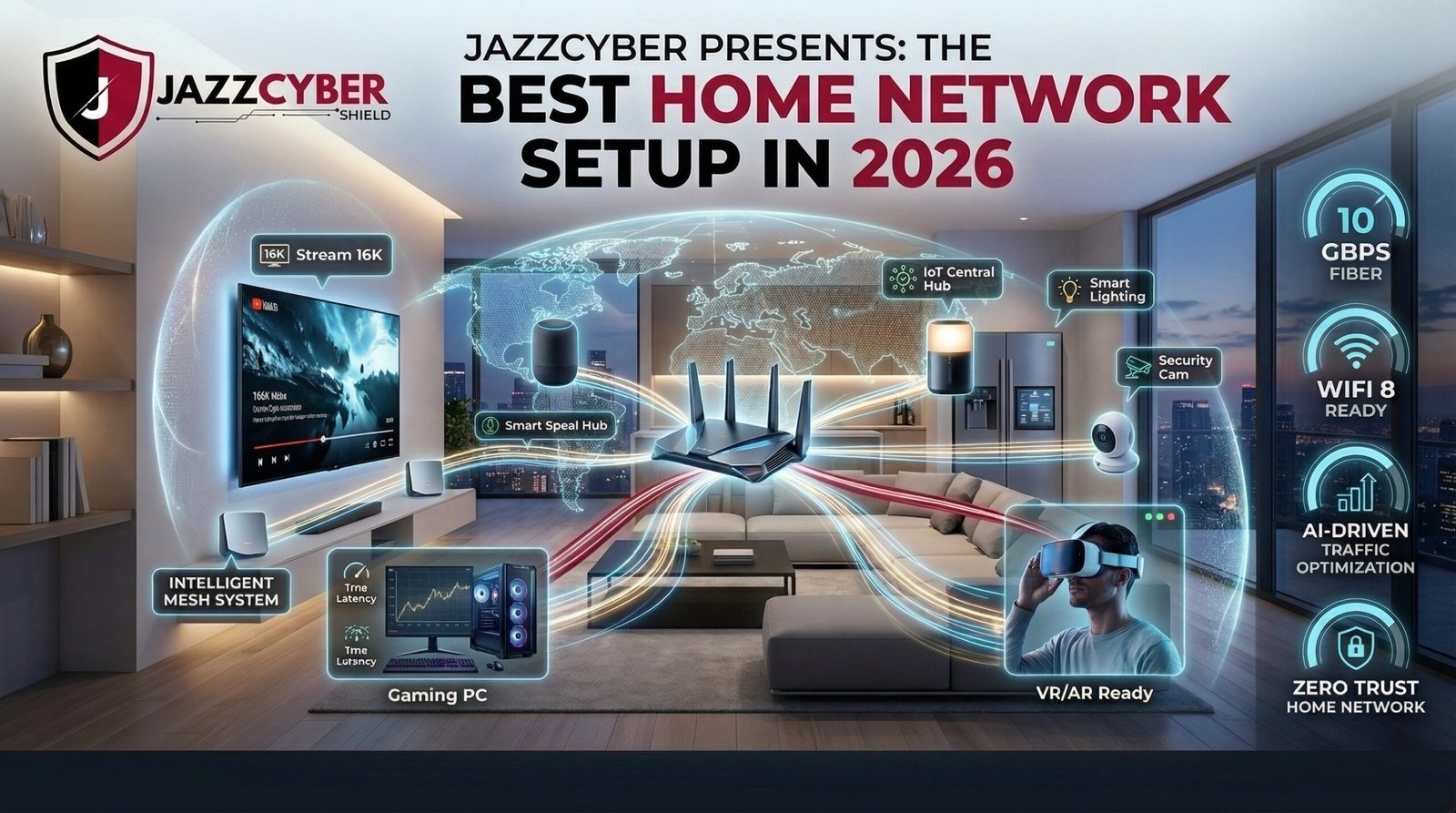
Your ISP router is not enough anymore. With streaming 4K on six devices, working from home, smart bulbs, security cameras, and gaming consoles all competing for bandwidth — your home network needs a proper setup. In this complete guide, we’ll walk you through everything from the basics to a fully professional home network, with real diagrams, gear recommendations, and security hardening tips that most households completely overlook.
Whether you’re a total beginner or someone who knows their way around a switch, this guide has something for you. And everything we recommend is available at Jazz Cyber Shield — your one-stop destination for IT hardware and security solutions.
Table of Contents
- Why Your ISP Router Isn’t Enough in 2026
- Key Components of a Modern Home Network
- Diagram: Basic Home Network Setup
- Diagram: Advanced Home Network Setup
- Wi-Fi 6E vs Wi-Fi 7 — Which Should You Choose?
- Best Routers for Home Use in 2026
- Do You Need a Network Switch?
- Access Points vs Mesh Wi-Fi
- Home Network Security & Firewalls
- IoT Devices & VLANs: Isolate and Protect
- Step-by-Step Setup Guide
- Frequently Asked Questions
1. Why Your ISP Router Isn’t Enough in 2026
Let’s be real — that boxy little router your internet provider shipped you in a cardboard box was designed to the lowest common denominator. It handles basic traffic, sure. But in 2026, the average home has over 25 connected devices. Your Netflix, your kid’s gaming PC, three smart TVs, a handful of smart home sensors, a security camera system, and your work laptop are all fighting over that single congested radio.
The result? Lag during video calls. Buffering during streams. Your smart doorbell dropping offline at 2AM.
A properly designed home network solves all of this. And the good news is that in 2026, enterprise-grade networking technology — from brands like Cisco, Ubiquiti, and HPE Aruba — is more affordable and accessible than ever before.
⚠ Security Alert: ISP-provided routers often receive firmware updates months late — if at all. Running outdated router firmware is one of the most common entry points for home network attacks in 2026. Read more on our blog: Your Home Router Is Spying on You — Here’s How to Stop It
2. Key Components of a Modern Home Network
Before we get into diagrams and specific hardware picks, let’s get everyone on the same page about what each piece of equipment actually does. Think of your home network like a plumbing system — water (data) flows in from the street (your ISP), gets routed through pipes (ethernet cables), and comes out of taps (your devices).
🔌 Modem Translates your ISP’s signal (fiber, cable, or DSL) into a digital signal your router can use. Many ISPs now combine this with a router into a single unit called a gateway.
🌐 Router The brain of your network. It assigns IP addresses, routes traffic between your devices and the internet, handles basic security (NAT), and usually provides Wi-Fi.
🔀 Network Switch Expands your wired connections. If your router only has 4 ethernet ports, a managed network switch gives you 8, 16, or 24+ ports — plus VLAN support, traffic prioritization, and port monitoring.
📡 Access Point Extends your Wi-Fi coverage without signal degradation. Unlike cheap range extenders, a proper access point connects back to your router over ethernet and delivers full-speed Wi-Fi to every corner of your home.
🛡 Firewall Monitors and actively filters all incoming and outgoing traffic. A dedicated hardware firewall protects your entire network from threats that your router’s basic NAT simply cannot stop.
⚡ PoE Switch (Power over Ethernet) A managed switch that delivers both data and electrical power through a single ethernet cable. This is how you power access points and security cameras with no wall outlets needed — highly recommended for any multi-AP setup.
3. Diagram: Basic Home Network Setup
This is what a clean, properly layered basic home network looks like. Even just getting this right puts you ahead of 80% of households. The key upgrade over a default ISP setup is separating the modem and router, and adding a dedicated switch for your wired devices.
┌──────────────────────────────────────────────────────────────────┐
│                  BASIC HOME NETWORK — 2026                       │
└──────────────────────────────────────────────────────────────────┘

  [ INTERNET / ISP ]
         │
         │  Coax / Fiber / DSL
         ▼
  ┌──────────────┐
  │    MODEM     │  ← Convert ISP signal to ethernet
  └──────┬───────┘
         │  Ethernet (Cat6)
         ▼
  ┌──────────────┐
  │    ROUTER    │  ← Network brain (DHCP, NAT, Wi-Fi)
  └──┬───┬───┬───┘
     │   │   │
     │   │   └────────────────────────────────────┐
     │   │                                    Wi-Fi 6E / 7
     ▼   ▼                                        │
 ┌────────┐  ┌──────────┐         ┌───────────────────────────┐
 │DESKTOP │  │ SMART TV │         │ Phones / Tablets / Laptops│
 │(Wired) │  │ (Wired)  │         │ IoT Devices (Wireless)    │
 └────────┘  └──────────┘         └───────────────────────────┘

  ✓ Wired devices: low latency, full speed
  ✓ Wireless: Wi-Fi 6E for maximum throughput
  ✗ Missing: full-home coverage, IoT isolation, advanced security
✅ Quick Win: Even on a tight budget, replacing your ISP gateway with a dedicated router and modem cuts latency, improves speeds, and gives you far more control. Check out Cisco home networking gear at Jazz Cyber Shield for solid entry-level options.
4. Diagram: Advanced Home Network Setup (2026)
This is the setup we recommend if you’re serious about performance, security, and whole-home coverage. It looks complex at first glance, but it’s surprisingly achievable — and all the components are available at Jazz Cyber Shield in one place.
┌──────────────────────────────────────────────────────────────────────┐
│           ADVANCED HOME NETWORK — 2026 (Full Setup)                  │
└──────────────────────────────────────────────────────────────────────┘

  [ INTERNET / ISP ]
         │
         ▼
  ┌────────────────┐
  │  MODEM / ONT   │  ← Fiber ONT or cable modem
  └───────┬────────┘
          │
          ▼
  ┌────────────────┐
  │    FIREWALL    │  ← SonicWall / FortiGate / WatchGuard
  └───────┬────────┘
          │
          ▼
  ┌────────────────┐
  │  MAIN ROUTER   │  ← Wi-Fi 6E / Wi-Fi 7, DHCP, VLAN Management
  └──────┬─────────┘
         │
         ▼
  ┌──────────────────────┐
  │  PoE SWITCH (L2/L3)  │  ← Cisco / HPE Aruba / TP-Link
  └─┬──┬──┬──┬──┬──┬─────┘
    │  │  │  │  │  │
    ▼  ▼  ▼  ▼  ▼  ▼
  AP1 AP2 AP3  NAS  CAM  CAM   ← All powered via PoE

  ─ ─ ─ ─ ─ ─ ─ ─ VLAN SEGMENTATION ─ ─ ─ ─ ─ ─ ─ ─ ─

  VLAN 10 — TRUSTED    Desktops, laptops, phones (full access)
  VLAN 20 — WORK       Work laptop, home office (isolated)
  VLAN 30 — IoT        Smart bulbs, cameras (internet only)
  VLAN 40 — GUEST      Visitor Wi-Fi (internet only, isolated)

  ✓ Every room covered via wired-backhaul access points
  ✓ Smart home devices isolated from personal & work devices
  ✓ Firewall inspects all inbound and outbound traffic
  ✓ Full visibility and control via managed switch dashboard
The key differentiator here is the managed PoE switch at the core. It powers your access points and cameras through a single ethernet cable — no power adapters or messy wall outlets needed. Browse our full range of PoE network switches from Cisco, HPE Aruba, and TP-Link at Jazz Cyber Shield.
5. Wi-Fi 6E vs Wi-Fi 7 in 2026 — Which Should You Choose?
If you’re building a new home network this year, you’ll inevitably face this question. Both are dramatically better than older Wi-Fi 5 (802.11ac) setups, but they serve slightly different needs.
| Feature | Wi-Fi 6E (802.11ax) | Wi-Fi 7 (802.11be) |
|---|---|---|
| Max Speed (Theoretical) | ~9.6 Gbps | ~46 Gbps |
| Frequency Bands | 2.4 / 5 / 6 GHz | 2.4 / 5 / 6 GHz |
| Multi-Link Operation | ✗ No | ✓ Yes — game changer |
| Real-World Latency | Very low | Ultra-low |
| Device Compatibility | Very wide (2022+) | Growing (2024+) |
| Price Point | Affordable | Premium to mid-range |
| Best For | Most home users today | Power users, future-proofing |
For most households in 2026, a Wi-Fi 6E router is the sweet spot. You get real-world speeds that saturate a gigabit internet connection, excellent range on the 6 GHz band, and broad device compatibility. Wi-Fi 7 is worth considering if you’re buying hardware you plan to keep for 5+ years. Our blog has a deeper dive in the Wi-Fi 6/6E section.
The best router isn’t the fastest one — it’s the one that gives every device in your home a consistent, reliable connection with no dead zones.
6. Best Routers for Home Use in 2026
We’ve broken this down by use case. Whether you’re in a studio apartment or a 5,000 sq ft home, there’s a right tool for the job.
🏆 TP-Link Deco XE75 Pro — Best Value The go-to mesh system for families and mid-sized homes. Tri-band Wi-Fi 6E, wired backhaul support, and an excellent app for parental controls. Covers up to 5,500 sq ft with two nodes. → Shop TP-Link Networking at Jazz Cyber Shield
🔒 Ubiquiti UniFi Dream Machine Special Edition — Best for Power Users The gold standard for home users who want enterprise-level control. Built-in router, firewall, IDS/IPS, and a single controller that manages your entire UniFi ecosystem — access points, cameras, and switches all from one dashboard. → Shop Ubiquiti at Jazz Cyber Shield
⚡ Cisco Meraki MX — Enterprise Grade If you work in IT or want the absolute best security money can buy at home, the Meraki MX offers cloud-managed firewall, SD-WAN, content filtering, and automatic threat intelligence updates. → Shop Cisco Meraki at Jazz Cyber Shield
7. Do You Need a Network Switch?
If you have more than four devices to connect via ethernet — or want to run wired access points in multiple rooms — the answer is yes. More importantly, you want a managed switch, not an unmanaged one.
| Feature | Unmanaged Switch | Managed Switch |
|---|---|---|
| VLAN Support | ✗ | ✓ |
| Traffic Prioritization (QoS) | ✗ | ✓ |
| Port Monitoring & Alerts | ✗ | ✓ |
| Web Dashboard | ✗ | ✓ |
| PoE Available | Some models | ✓ Most models |
| Price | $ Budget | $$ Mid to Premium |
For any home network with IoT devices, VLANs, or wired access points, a managed switch is essential. Our top picks are the HPE Aruba 1930 series and the Cisco Catalyst series — both available at Jazz Cyber Shield. For tighter budgets, the TP-Link TL-SG108E 8-port smart managed switch is a crowd favorite.
🛒 Shop Now: Browse our full selection of managed and unmanaged PoE switches. → View All Network Switches at Jazz Cyber Shield
8. Access Points vs Mesh Wi-Fi — What’s Actually Better?
This is one of the most common questions we get on the Jazz Cyber Shield blog. Here’s the straight answer: if you can run ethernet cables through your walls, wired access points always win. If you can’t run cables, a quality mesh system is your best bet.
Wired Access Points — Best Performance
An access point connected via ethernet delivers the full speed of your internet connection with zero wireless signal degradation. The Ubiquiti UniFi U6 Pro and Ruckus R750 are the gold standards for home deployment — ceiling-mounted, PoE-powered, and managed from a single controller dashboard.
Mesh Wi-Fi — Best Convenience
If running cables isn’t an option, a mesh system like TP-Link Deco uses a dedicated wireless backhaul channel so devices still get solid speeds. The tradeoff: you’ll typically lose 20–40% of bandwidth compared to a wired backhaul, depending on signal quality and wall materials.
Access Point Placement Diagram — 3-Bedroom Home:
  FLOOR PLAN — Top-Down View
  ─────────────────────────────────────────────────────────────

  [ LIVING ROOM ]──────────────[ KITCHEN ]
        │                           │
    📡 AP #1                        │   ← Central ceiling mount
        │                           │
  [ HALLWAY ]──────────────────────

  ┌─────────────────────────────────┐
  │   UPSTAIRS                       │
  │  [BEDROOM 1]    [BEDROOM 2]      │
  │       │               │          │
  │   📡 AP #2        📡 AP #3       │  ← One AP per large area
  │   [HOME OFFICE]                  │
  └──────────────────────────────────┘

  All APs connect via ethernet to PoE switch in comms cabinet
  Router stays next to modem — NOT in center of house
  All APs share the same SSID → seamless 802.11r roaming
Explore our full lineup of access points from Ubiquiti, Ruckus, and HPE Aruba at Jazz Cyber Shield — the same enterprise-grade hardware used in offices and hotels, now priced for home deployment.
9. Home Network Security & Firewalls in 2026
Here’s something the tech industry doesn’t say loudly enough: your home router’s built-in firewall is basically just NAT. It hides your devices behind a single IP address, which provides some passive protection — but it does not inspect traffic, block malware downloads, or detect compromised IoT devices calling home to bad actors.
In 2026, with remote work the norm and smart home devices being actively exploited, a dedicated hardware firewall is no longer just for businesses. Our top picks for home use:
🔥 Fortinet FortiGate 40F — Best for Home Office Pro Users A genuine next-generation firewall (NGFW) with deep packet inspection, IPS, application control, and web filtering. Perfect for anyone who works from home on a corporate connection or stores sensitive personal data. → Shop Fortinet Firewalls at Jazz Cyber Shield
🔐 SonicWall TZ270 — Best Mid-Range One of the most popular small-business firewalls, now widely used in advanced home setups. Provides real-time threat intelligence, SSL inspection, and VPN capability with an intuitive SonicOS interface. → Shop SonicWall at Jazz Cyber Shield
🛡 WatchGuard Firebox T25 — Best for Security-First Households Excellent for families that prioritize content filtering and child safety. WatchGuard’s DNSWatch and WebBlocker features make it the top pick for homes with children or environments facing frequent threat exposure. → Shop WatchGuard at Jazz Cyber Shield
📖 Further Reading: Check out in-depth firewall setup guides and comparisons on the Jazz Cyber Shield Networking Blog, including how to configure SonicWall for home use step by step.
10. IoT Devices & VLANs: Isolate and Protect
This is the single biggest security upgrade you can make to your home network — and almost nobody does it. If your smart fridge, baby monitor, and front door lock are on the same network as your laptop, a hacker who compromises any one of those devices can pivot to reach everything else.
VLANs (Virtual Local Area Networks) let you create separate virtual networks on the same physical hardware. Here’s the four-VLAN setup we recommend:
→ VLAN 10 — Main/Trusted: Your phones, personal laptops, and desktops. Full internet and local network access.
→ VLAN 20 — Work: Your work laptop and any devices used for remote work. Isolated to prevent IoT cross-contamination. VPN connections back to the office go here.
→ VLAN 30 — IoT: Smart TVs, bulbs, thermostats, and security cameras. Internet access only. Completely blocked from reaching your trusted VLAN.
→ VLAN 40 — Guest: A clean Wi-Fi network for visitors. Internet access only, completely isolated from all other VLANs.
This requires a managed switch and a VLAN-capable router — something every Ubiquiti, Cisco, and HPE Aruba device supports natively. The IoT networking section of our blog covers smart home security and step-by-step VLAN configuration in detail.
⚠ Did You Know? The average compromised IoT device in a home network goes undetected for over 6 months. VLAN isolation means even a fully hacked smart bulb cannot reach your computers or files. Pair this with a good VPN for complete privacy — read our guide: Free VPN vs Paid VPN: The Truth They Hide (2026)
11. Step-by-Step Home Network Setup Guide
Ready to build? Here’s the exact order to do things. Don’t skip the planning phase — jumping straight to plugging things in is how you end up with a messy, unreliable setup that you’ll be rebuilding in six months.
Step 01 — Plan Your Layout Draw a rough floor plan of your home. Mark every room where you’ll need Wi-Fi, every location where you want a wired ethernet port, and where your cable entry point is (usually where the modem lives). Decide upfront whether you’ll run new ethernet cables or rely on a mesh system.
Step 02 — Choose and Order Your Hardware Based on your layout, decide on your router, switch, and access points. For a complete one-stop shop, visit Jazz Cyber Shield — we carry everything from budget TP-Link gear to enterprise Cisco and Ubiquiti hardware, all with fast shipping.
Step 03 — Run Your Ethernet Cables If you’re deploying wired access points, this is the hardest part — but it’s a one-time job. Use Cat6 cable for runs up to 100m. Run cables through walls, attic spaces, or use cable raceways along baseboards. Terminate with RJ45 connectors or keystone jacks at wall plates.
Step 04 — Connect Modem → Router → Switch Connect your modem to the WAN port of your router. Connect the router’s LAN port to your managed switch. Power everything on and confirm your router receives an IP from the modem. Access your router admin panel (usually 192.168.1.1 or 192.168.0.1).
Step 05 — Configure VLANs and Wi-Fi SSIDs In your router’s settings, create your VLANs — Trusted, IoT, and Guest at minimum. Create a separate Wi-Fi SSID for each VLAN with the same password format. Set firewall rules to block cross-VLAN traffic. This is the step most home users skip, and it’s the most impactful one for security.
Step 06 — Mount and Configure Access Points Connect each access point to a PoE port on your managed switch. Configure each AP through your controller software (UniFi Controller, Cisco Meraki Dashboard, etc.). Set the same SSID names as your router — devices will roam between access points automatically via 802.11r fast transition.
Step 07 — Test, Optimize, and Monitor Run speed tests from every room using a tool like Speedtest.net. Check signal strength using a free Wi-Fi analyzer app on your phone. Adjust AP placement if any dead zones remain. Set up monitoring alerts in your router or switch dashboard so you’re immediately notified of new devices or unusual traffic.
🛒 Get Everything in One Place: Routers, switches, access points, firewalls, cameras, and storage — everything you need for a complete 2026 home network setup. → Visit Jazz Cyber Shield Shop
Bonus: Adding Security Cameras to Your Home Network
Security cameras are now standard in many home networks. The key is keeping them on your IoT VLAN while ensuring they have reliable, always-on ethernet connectivity. Jazz Cyber Shield carries both Hikvision and Axis Communications security cameras — two of the most trusted names in the industry.
For storage, a local NAS (Network Attached Storage) keeps your footage on-premises, gives you unlimited capacity, and eliminates monthly cloud subscription fees. Check out NAS drives from Western Digital and Seagate at our store. And because your cameras live on the IoT VLAN, even if one is compromised, the attacker cannot pivot to the rest of your network. Read more: Is Someone Watching? How Hackers Access Your Security Cameras
Frequently Asked Questions
Q: What is the best home network setup in 2026? The best setup combines a Wi-Fi 6E or Wi-Fi 7 router, a managed PoE switch, wired access points for full-home coverage, VLAN segmentation for IoT devices, and a dedicated hardware firewall. All the hardware you need is available at Jazz Cyber Shield.
Q: Do I really need a firewall at home? In 2026, yes — especially if you work from home, have children, or run smart home devices. Your router’s NAT is passive security at best. A hardware firewall from Fortinet, SonicWall, or WatchGuard actively inspects, filters, and blocks real-time threats.
Q: What is the difference between a router and an access point? A router manages your internet connection, assigns IP addresses, and routes traffic. An access point extends your Wi-Fi coverage over an ethernet cable — it doesn’t perform any routing. Think of your router as the post office and access points as delivery drivers covering different neighborhoods.
Q: Is mesh Wi-Fi better than a single router for large homes? For homes over 2,000 sq ft or multi-story buildings where running ethernet isn’t practical, yes. Mesh Wi-Fi creates seamless coverage across the whole space. Where ethernet cabling is possible, wired access points will always outperform mesh in raw speed and reliability.
Q: What ethernet cable should I use in 2026? Cat6 is the right choice for virtually every home. It supports 10 Gbps at up to 55m and 1 Gbps up to 100m, is backward compatible with all Cat5e equipment, and costs only marginally more than older cable types. There’s no good reason to install Cat5e in a new home network today.
Q: How do I separate smart home devices from my main network? Through VLAN configuration on a managed switch and router. Create a dedicated IoT VLAN, assign your smart devices to a separate Wi-Fi SSID that maps to that VLAN, and set firewall rules to block cross-VLAN communication. Our IoT networking guides on the blog walk through this process step by step.
Final Thoughts: Build Your Network Like a Pro
Building a great home network in 2026 isn’t rocket science — but it does require thinking a few steps ahead. The difference between a frustrating, unreliable home network and a rock-solid one comes down to three things: using the right hardware, running ethernet where possible, and segmenting your devices properly with VLANs.
Whether you’re starting from scratch or upgrading what you already have, all the hardware covered in this guide — from Cisco and Ubiquiti to Fortinet and HPE Aruba — is available in one place at Jazz Cyber Shield, your one-stop destination for reliable IT hardware and security solutions.
For more deep-dive guides, gear reviews, and cybersecurity tips, bookmark the Jazz Cyber Shield Blog. We publish weekly content covering networking, security cameras, Wi-Fi 6, IoT, and the latest in hardware technology.
📌 Quick Summary: Quality router (Wi-Fi 6E minimum) → Managed PoE switch → Wired access points → VLAN segmentation → Hardware firewall. All gear at jazzcybershield.com/shop


Great point on securing IoT devices! Many people don’t realize how vulnerable these can be, especially as more devices connect to the network. It’s definitely something that should be top of mind as we move towards smarter homes.
I also appreciated the honest comparisons between different router brands and the frank discussion of which features actually matter versus which are simply marketing gimmicks. Bookmarked this page and will be returning every time I need to expand or troubleshoot my home network setup!
Brilliant article that finally explained mesh networks in a way I could actually understand! The diagrams were so helpful and the 2026 recommendations feel genuinely current and relevant. Shared this with my husband immediately and we are already planning to upgrade our entire home network setup based on your advice. Thank you so much for putting this together!
This article answered every single question I had and then some. The diagrams were absolutely superb and made complex concepts like VLAN configuration and mesh network placement completely understandable even for someone without a strong technical background. I followed the recommendations on router placement and channel selection and the improvement in my WiFi speeds was immediately noticeable throughout the entire house. Incredible work!