



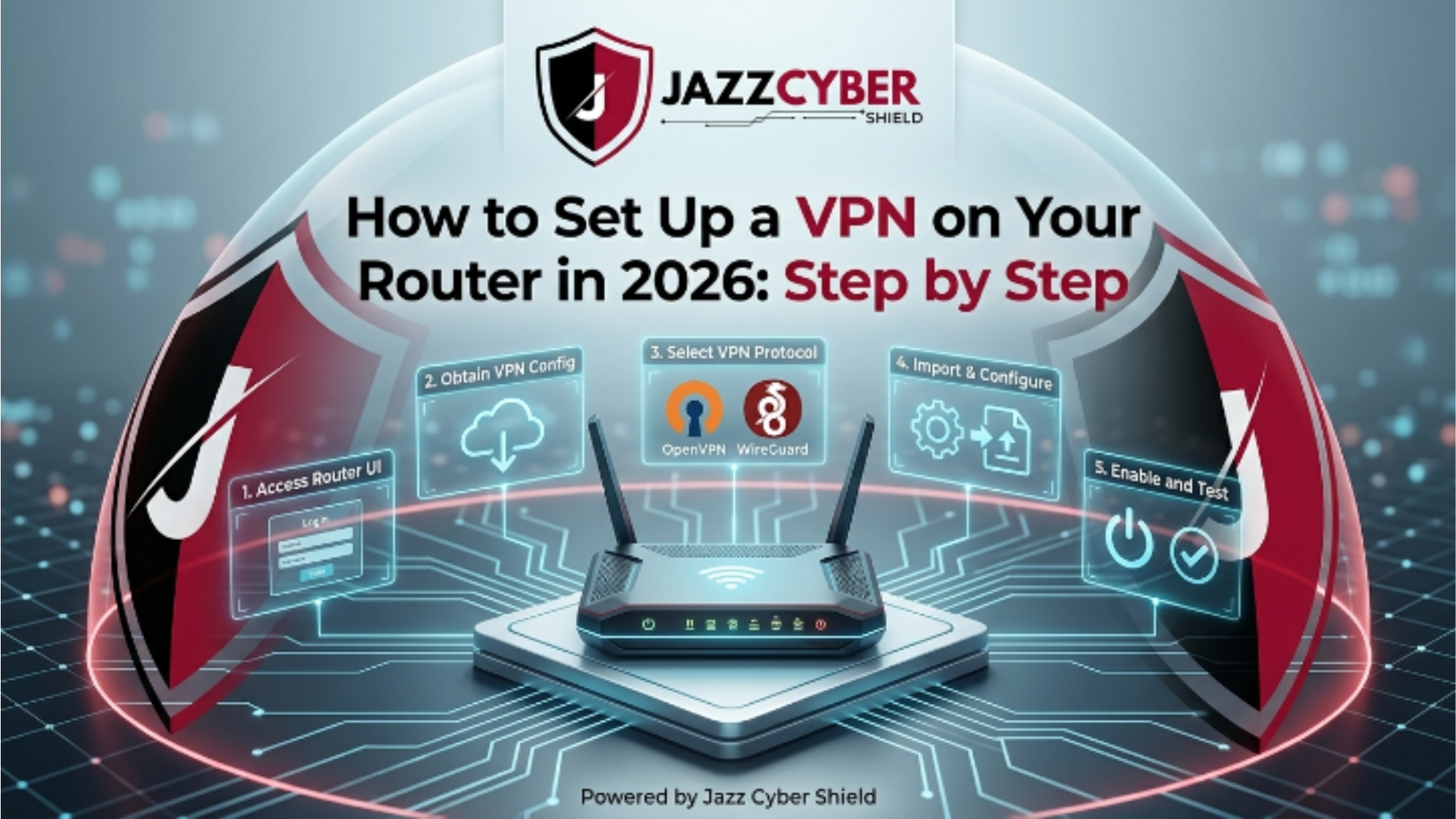
Setting up a VPN on your router is one of the smartest security moves you can make in 2026 — and yet most people skip it because it sounds complicated. It isn’t. Done correctly, a router-level VPN encrypts every single device on your network simultaneously — your laptop, phone, smart TV, gaming console, and every IoT device — without installing anything on each one individually.
According to recent cybersecurity trend data, VPN adoption has surged over 40% since 2024 as remote work became permanent for millions. But device-level VPN apps have a serious flaw: the moment you forget to activate the app, or your phone reboots, your traffic is exposed. A VPN installed directly on your router eliminates that risk entirely. It is always on, for every device, automatically.
In this complete step-by-step guide, we cover everything: which routers actually support VPNs, which protocol to use in 2026, how to configure it from scratch, how to troubleshoot common problems, and whether a router VPN is right for your situation. If you are also thinking about broader network protection, check out our guide on Next-Generation Firewalls (NGFW) — because a VPN and a strong firewall together create a defense-in-depth posture that is very hard to breach.
Table of Contents
What Is a Router VPN — and Why Does It Matter in 2026?
A router VPN is a Virtual Private Network configured directly on your home or office router, rather than on individual devices. Instead of installing a VPN app on your laptop or phone, the router itself handles all encryption and routing — meaning every device that connects to your Wi-Fi is automatically protected, with zero additional configuration required.
Think of it this way: a device-level VPN is an umbrella you have to remember to open every time it rains. A router VPN is a permanent roof — always there, always working, no action required from you or anyone in your household.
Definition: A router VPN is a VPN client installed directly onto your home or office router firmware, encrypting all traffic from every connected device automatically and permanently.
In 2026, the case for router-level VPN has never been stronger. The average home now has 17+ connected devices — smart TVs, streaming sticks, security cameras, smart speakers, thermostats, gaming consoles — most of which cannot install VPN apps at all. A router VPN is the only way to extend privacy protection to these devices.
Beyond privacy, router VPNs also protect against ISP-level surveillance, throttling based on content type, and DNS-based tracking. As we explained in our post on whether a VPN actually hides you from your ISP, the answer is yes — but only if the VPN is always active. A router VPN ensures it always is.
Does Your Router Support VPN? (How to Check) {#check-support}
Before you begin, you need to confirm your router actually supports VPN client functionality. Not all routers do — and this is the most common point of confusion.
Three types of routers in terms of VPN support:
Type 1: Natively VPN-Ready Routers
These routers come with a built-in VPN client in their standard firmware. Examples include Asus routers running AsusWRT, GL.iNet routers, and Firewalla devices. Setup is straightforward — log in, navigate to the VPN section, and enter your credentials. No firmware changes required.
Type 2: Routers Supporting Custom Firmware (DD-WRT / OpenWrt / Tomato)
Many popular routers — including older Linksys, Netgear, and TP-Link models — support third-party firmware like DD-WRT or OpenWrt that adds full VPN client functionality. This requires flashing the router with custom firmware, which is an intermediate-level task. Check dd-wrt.com or openwrt.org for your specific router model compatibility before proceeding.
Type 3: VPN-Unsupported Routers (ISP-Provided Modems/Routers)
Most ISP-provided combo modem/routers do not support VPN clients at all. The firmware is locked and cannot be modified. Your best option in this case is to connect a VPN-capable router behind the ISP modem. Your ISP device handles the internet connection; your VPN router handles all home traffic behind it.
Quick Check: Log in to your router admin panel (usually at 192.168.1.1 or 192.168.0.1). Navigate the menu and look for a section labeled “VPN,” “VPN Client,” or “Advanced > VPN.” If you see it, you are ready to proceed.
Choosing the Right VPN Protocol for Your Router in 2026 {#protocol}
Not all VPN protocols are equal — and the one you choose significantly affects speed, security, and compatibility. Here is what you need to know in 2026:
| VPN Protocol | Speed | Security | Compatibility | Best Use Case |
|---|---|---|---|---|
| WireGuard | Fastest | Very High | Most modern routers | Streaming, gaming, daily use |
| OpenVPN (UDP) | Fast | Very High | Near universal | General use, remote work |
| OpenVPN (TCP) | Moderate | Very High | Universal | Restricted networks, firewalls |
| IPSec/IKEv2 | Fast | High | Native on most OS | Mobile, enterprise |
| L2TP/IPSec | Slow | Medium | Wide | Legacy compatibility only |
| PPTP | Fast (but unsafe) | Very Low | Universal | Not recommended — deprecated |
Our recommendation for 2026: Use WireGuard if your router and VPN provider support it — it is dramatically faster and more efficient than OpenVPN while delivering equivalent security. If WireGuard is not available, use OpenVPN UDP as your default. Avoid L2TP/IPSec on older devices and never use PPTP — it was officially deprecated years ago and offers no meaningful protection against modern attacks.
Best VPN-Compatible Routers of 2026 {#best-routers}
Here are the top routers for VPN setup in 2026, across different budgets and use cases:
| Router Model | VPN Protocol | Built-in VPN Client | Price Range | Best For |
|---|---|---|---|---|
| Asus RT-AX88U | OpenVPN, WireGuard | Yes (native) | $250–$320 | Power users, home office |
| GL.iNet Beryl AX | OpenVPN, WireGuard | Yes (native) | $70–$90 | Travel, portable VPN |
| Netgear Nighthawk RAX50 | OpenVPN only | Yes (basic) | $180–$230 | Budget home users |
| Linksys WRT3200ACM | OpenVPN, DD-WRT | Yes (with firmware) | $150–$200 | Firmware enthusiasts |
| Firewalla Gold | OpenVPN, WireGuard | Yes (full featured) | $350–$400 | Security-focused homes |
For most home users, the GL.iNet Beryl AX offers the best value — it natively supports both WireGuard and OpenVPN, has a beginner-friendly interface, and costs under $90. Power users with large households should consider the Asus RT-AX88U. For security-focused setups, Firewalla Gold combines router VPN with full network monitoring features similar to what we describe in our NGFW Complete Guide.
Step-by-Step: How to Set Up a VPN on Your Router {#steps}
The following steps apply to routers with native VPN support (Asus AsusWRT or GL.iNet). The process is very similar across other VPN-ready firmware. We will note where steps differ for DD-WRT or OpenWrt.
Step 1: Choose and Subscribe to a VPN Service {#step-1}
Before touching your router, you need an active subscription with a VPN provider that supports router-level configurations. Not all consumer VPNs do.
Top VPN providers with router support in 2026:
- NordVPN — supports WireGuard (NordLynx) and OpenVPN; excellent router documentation
- ExpressVPN — proprietary Lightway protocol and OpenVPN; dedicated router app for some models
- Surfshark — WireGuard and OpenVPN; unlimited device connections (ideal for router setup)
- Mullvad — privacy-focused, WireGuard native, no-logs audited
- ProtonVPN — strong privacy credentials, WireGuard support, free tier available (limited)
After subscribing, navigate to your provider’s manual configuration or router setup section and download the configuration files. For OpenVPN, this will be a .ovpn file. For WireGuard, it will be a .conf file. You will also need your VPN username and password (sometimes separate from your account login credentials — check your provider’s dashboard).
Step 2: Log In to Your Router Admin Panel {#step-2}
Connect your computer to the router via Ethernet cable (more reliable than Wi-Fi for admin tasks). Open a browser and navigate to your router’s admin IP address.
Common router admin addresses:
- 192.168.1.1 — Asus, TP-Link, Netgear
- 192.168.0.1 — Linksys, D-Link
- 192.168.8.1 — GL.iNet routers
- 10.0.0.1 — Some Xfinity / ISP routers
Enter your admin username and password. If you have never changed these, check the label on the bottom of your router. The default credentials are often printed there. If you cannot find them, a factory reset will restore defaults (note: this will erase all your router settings).
Security tip: After completing the VPN setup, change your router admin password to something strong and unique. Router admin panels are a common target for local network attacks.
Step 3: Configure the VPN Client Settings {#step-3}
Asus Routers (AsusWRT):
- In the admin panel, navigate to: VPN → VPN Client
- Click “Add Profile”
- Select your VPN protocol (WireGuard or OpenVPN)
- For OpenVPN: click “Browse” and upload your .ovpn configuration file
- For WireGuard: click “Import” and upload your .conf configuration file
- Enter your VPN username and password in the credential fields
- Click “OK” to save the profile
GL.iNet Routers:
- Navigate to: VPN → OpenVPN Client (or WireGuard Client)
- Click “+” to add a new configuration
- Upload your .ovpn or .conf file directly
- The router will automatically parse server details, ports, and authentication
- Save the configuration
DD-WRT Firmware:
- Navigate to: Services → VPN
- Enable “Start OpenVPN Client”
- Enter server address, port, protocol, and tunnel device settings manually from your .ovpn file
- Paste your CA Certificate, Client Certificate, and Client Key into the respective fields
- Click “Save” then “Apply Settings”
Step 4: Enter Server Credentials and Connect {#step-4}
With your configuration uploaded, you now need to select a VPN server location and activate the connection.
- In your VPN client section, select the profile you just created
- Choose your preferred server location. For speed, select a server geographically close to you. For specific content access, select the relevant country.
- Click “Connect” or “Activate”
- The router will attempt to establish the VPN tunnel. This typically takes 15–60 seconds.
- A green indicator or “Connected” status confirms the tunnel is active.
Important: Some VPN providers limit simultaneous connections on their plans. If you are routing your entire household through a single VPN connection, confirm your plan allows router-level connections — many providers count this as a single connection regardless of how many devices sit behind the router.
Step 5: Verify the VPN Is Working {#step-5}
Never assume the VPN is working just because the status shows “Connected.” Always verify with an independent IP check.
- On any device connected to your router’s Wi-Fi, open a browser
- Go to whatismyip.com or ipleak.net
- Confirm that the displayed IP address matches your VPN server’s IP — not your real ISP-assigned address
- On ipleak.net, also check the DNS leak section — your DNS servers should show your VPN provider’s servers, not your ISP’s servers
- Run a WebRTC leak test (available on ipleak.net) to confirm your real IP is not leaking through browser WebRTC
If your real IP is still showing, the VPN tunnel has not been properly established. Review your configuration file and credentials, check that the correct protocol and port are selected, and try reconnecting. For persistent issues, refer to the troubleshooting section below. You may also want to review our article on VPN Kill Switches — enabling a kill switch at the router level ensures no traffic ever leaks if the VPN drops unexpectedly.
Step 6 (Optional): Configure VPN Split Tunneling {#step-6}
Split tunneling lets you route some devices through the VPN while others connect directly to the internet. This is useful for devices like banking apps that block VPN connections, or smart TVs that only need VPN for specific content.
How to enable split tunneling on Asus routers:
- Navigate to: VPN → VPN Client → your active profile
- Enable “VPN Director” or “Selective Routing”
- Add device MAC addresses or IP addresses to the VPN tunnel list
- Devices not on the list will bypass the VPN and connect normally
How to enable split tunneling on GL.iNet routers:
- Navigate to: VPN → VPN Dashboard → your connection
- Open “Global Proxy” options and switch to “Selective Proxy”
- Add specific devices by their IP address to include or exclude from the VPN tunnel
For businesses with more complex requirements — like routing all traffic through a NGFW while VPN protects remote access — we recommend reading our guide on network security architecture best practices which covers layered security setups in detail.
Router VPN vs. Device VPN: Key Differences {#comparison}
Should you set up a VPN on your router, install it on individual devices, or both? Here is a clear breakdown:
| Factor | Router-Level VPN | Device-Level VPN App |
|---|---|---|
| Coverage | All devices automatically | One device at a time |
| Setup effort | One-time router config | Install app on every device |
| IoT devices | Protected (no app needed) | Not possible — no app support |
| Speed impact | Slight on older routers | Minimal on modern devices |
| Always-on | Yes — automatic | Only when app is active |
| Split tunneling | By device (MAC/IP) | By app or URL (more granular) |
| Kill switch | Available on most firmware | Available in most VPN apps |
| Gaming consoles / smart TVs | Protected | Not possible natively |
| Best for | Households, always-on protection | Individuals, frequent travel |
Our verdict: For most homes and small offices, a router VPN is the superior long-term solution. For frequent travelers or people who need per-app control, device-level VPN apps offer more flexibility. The ideal setup combines both — router VPN as the always-on baseline, with a VPN app on your laptop for travel scenarios.
Cost Breakdown: VPN Router Setup in 2026 {#cost}
One of the most common questions we receive is: “How much does it actually cost to set up a VPN on a router?” Here is a realistic breakdown by setup type:
| Setup Type | Hardware Cost | VPN Subscription | Recommended Option |
|---|---|---|---|
| VPN-Ready Router (new) | $70–$400 | $3–$12/month | GL.iNet + NordVPN / ExpressVPN |
| Existing Router + DD-WRT | $0 (if compatible) | $3–$12/month | Linksys WRT series + Surfshark |
| Dedicated VPN Router (enterprise) | $350–$600 | $10–$30/month | Firewalla Gold + Mullvad |
| ISP Router (limited support) | $0 | $3–$12/month | Often not possible — upgrade router |
| Cloud/Travel Router | $40–$90 | $3–$12/month | GL.iNet Beryl AX + Proton VPN |
Hidden costs to consider: Your VPN subscription typically auto-renews annually. Multi-year plans from providers like NordVPN or Surfshark reduce monthly cost to $2–$4/month. Factor in the router’s electricity cost — a typical home router uses 5–20W, adding roughly $5–$15 to your annual electricity bill. Professional setup assistance, if needed, typically runs $50–$150 as a one-time cost.
For businesses, a router VPN alone is often insufficient — it should be part of a broader security stack. Visit jazzcybershield.com to explore enterprise-grade networking and security equipment options that complement router-level VPN deployments.
Common Router VPN Problems and How to Fix Them {#troubleshoot}
Problem 1: VPN shows “Connected” but IP address hasn’t changed
This almost always means the VPN tunnel established but routing is not correct. Check your router’s VPN client settings and ensure “Route all traffic through VPN” or equivalent option is enabled. On some routers, this is called “Redirect Internet Traffic.” Also confirm there are no conflicting policy routes.
Problem 2: Very slow speeds after connecting to VPN
First, try switching from OpenVPN to WireGuard — WireGuard is significantly more CPU-efficient and will often double or triple your speeds on the same router hardware. If WireGuard is not available, switch from OpenVPN TCP to UDP. Also try a geographically closer VPN server. Finally, check whether your router’s CPU is being maxed out during VPN sessions — older dual-core routers struggle with encryption overhead.
Problem 3: Streaming services blocking VPN
Major streaming platforms actively block known VPN IP ranges. Switch to a different server in your VPN provider’s server list — providers frequently rotate IPs to combat this. Some VPN providers offer dedicated “streaming-optimized” or “obfuscated” servers specifically designed to bypass geo-blocks. Alternatively, use split tunneling to route only your streaming device directly without the VPN.
Problem 4: VPN keeps disconnecting
Persistent disconnections are usually caused by one of three things: server-side issues (try a different server), an unstable internet connection upstream of the router, or a keepalive timer mismatch. In your VPN configuration, enable “keepalive” with a ping interval of 10 seconds and a restart timeout of 60 seconds. For OpenVPN specifically, add “ping 10” and “ping-restart 60” to your configuration if your firmware allows manual edits.
Problem 5: DNS leaks detected on ipleak.net
DNS leaks mean your DNS queries are going to your ISP’s servers instead of your VPN provider’s — revealing your browsing history to your ISP despite the VPN. In your router settings, manually set DNS servers to your VPN provider’s DNS addresses (found in their documentation). Alternatively, use a privacy-focused public DNS like Cloudflare (1.1.1.1) or Quad9 (9.9.9.9). Disable “DNS Rebind Protection” if it is overriding your custom DNS settings. For deeper protection information, see our complete cybersecurity resource hub.
Frequently Asked Questions About Router VPN Setup {#faq}
Will a router VPN slow down my internet significantly?
With WireGuard on a modern router (manufactured 2022 or later), speed reduction is typically under 10–15% of your base connection speed. With OpenVPN on older hardware, you may see 30–60% reduction due to the encryption overhead being processed in software. The key is matching your router’s CPU capability to your internet speed — a $70 GL.iNet Beryl AX handles 300–400 Mbps with WireGuard comfortably, while higher speeds require more powerful hardware.
Can I still access local network devices while using a router VPN?
Yes, in almost all router VPN configurations. The VPN tunnel encrypts traffic leaving your home network toward the internet, but local network traffic between devices on your LAN is not affected. You can still print to local printers, cast to a Chromecast, stream from a local NAS, and use local smart home hubs normally.
Does setting up a router VPN violate my ISP’s terms of service?
In the vast majority of residential ISP agreements, VPN use is explicitly permitted or simply not addressed. VPNs are legal tools used by millions of home users, businesses, and organizations worldwide. In a small number of countries, VPN use is regulated or restricted — if you are unsure about your local regulations, consult a legal professional in your region.
What happens if the VPN connection drops on the router?
By default on most routers, if the VPN drops, traffic will fall back to your regular unencrypted internet connection — meaning your traffic is suddenly unprotected. To prevent this, enable the VPN Kill Switch feature in your router settings (available in AsusWRT, GL.iNet, DD-WRT, and OpenWrt). This blocks all internet traffic the moment the VPN drops, preventing any unencrypted data from leaking. We covered this feature in detail in our VPN Kill Switch guide.
Can I use a free VPN on my router?
Technically yes, but we strongly advise against it. Free VPN services monetize their users in various ways — logging and selling browsing data, injecting ads, or providing minimal bandwidth. For a router deployment where your entire household’s traffic routes through the VPN, you need a provider with a verified no-logs policy, strong encryption, and reliable uptime. ProtonVPN’s free tier is a rare exception — it has been independently audited and operates a genuinely free service. But for a permanent router setup, a paid subscription at $3–$5/month is the right investment.
Does a router VPN protect against all cyber threats?
A VPN encrypts your traffic and hides your IP address — but it is not a comprehensive security solution on its own. It does not block malware downloads, phishing sites, or ransomware. For complete protection, combine a router VPN with a Next-Generation Firewall (NGFW) or a security-focused DNS service, strong endpoint protection on individual devices, and regular software updates. Our NGFW Complete Guide explains how these layers work together.
Final Verdict: Should You Set Up a VPN on Your Router in 2026?
Absolutely yes — and the process is far less intimidating than most people assume. If you follow the steps in this guide, you can have a working router VPN in under 30 minutes using a VPN-ready router like the GL.iNet Beryl AX or an Asus RT-AX88U.
The benefits are clear: every device in your home gains automatic, always-on privacy protection — including devices that cannot install VPN apps at all. Your ISP loses visibility into your traffic. Your real IP address is hidden from every site and service you access. And you do all of this once, without installing anything on individual devices ever again.
For small business owners, the case is even stronger. Router-level VPN combined with proper network segmentation creates a security posture that was previously only accessible to enterprises. For practical, expert-reviewed security and networking hardware, visit jazzcybershield.com — we carry enterprise-grade solutions from Cisco, Fortinet, Aruba, and more, sized and priced for SMBs.
Ready to go deeper into network security? Explore our full Cybersecurity guide library and our Networking resource hub — built specifically to help IT professionals and business owners make smarter security decisions in 2026.
Have questions about your specific router model or VPN provider? Drop them in the comments below — our team responds to every question.

